How to Turn a Screen Recording into a Long Screenshot on iPhone
To turn a screen recording into a long screenshot on iPhone, start Screen Recording in Control Center, scroll slowly through the page, and stop. Then open Zeta Stitch: with full access to Photos, it opens the new recording by itself. Trim the start and end and tap Stitch Selected Clip. Zeta turns the scrolling part of the video into one long image.
Why the iPhone can’t do this on its own
iOS can record your screen, and it can take screenshots, but it can’t turn one into the other. A screen recording is a video: fine for showing how something moves, useless when you want to read, mark up or print a long list of comments, a feed, a settings page or an article.
Taking a screenshot every few lines works too, but on a long page it’s a dozen screenshots, and it’s easy to scroll too far and miss a part. Scrollshot gives you the long image from one smooth scroll.
Step by step with Zeta Stitch
1Step 1:Record while you scroll
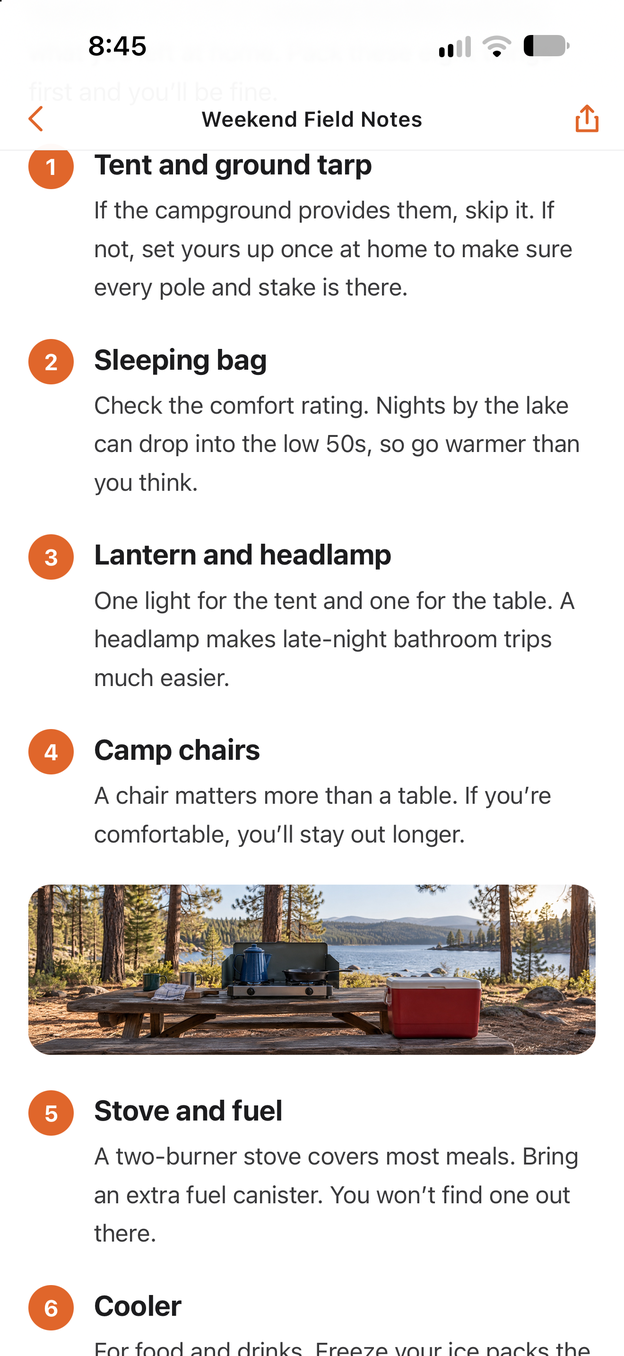
Add Screen Recording to Control Center once (open Control Center, tap +, then Add a Control; on iOS 17 or earlier, Settings > Control Center). Open the page, tap Screen Recording, and after the 3-second countdown scroll down slowly. Tap the red indicator at the top to stop.
2Step 2:Open Zeta, and the recording opens
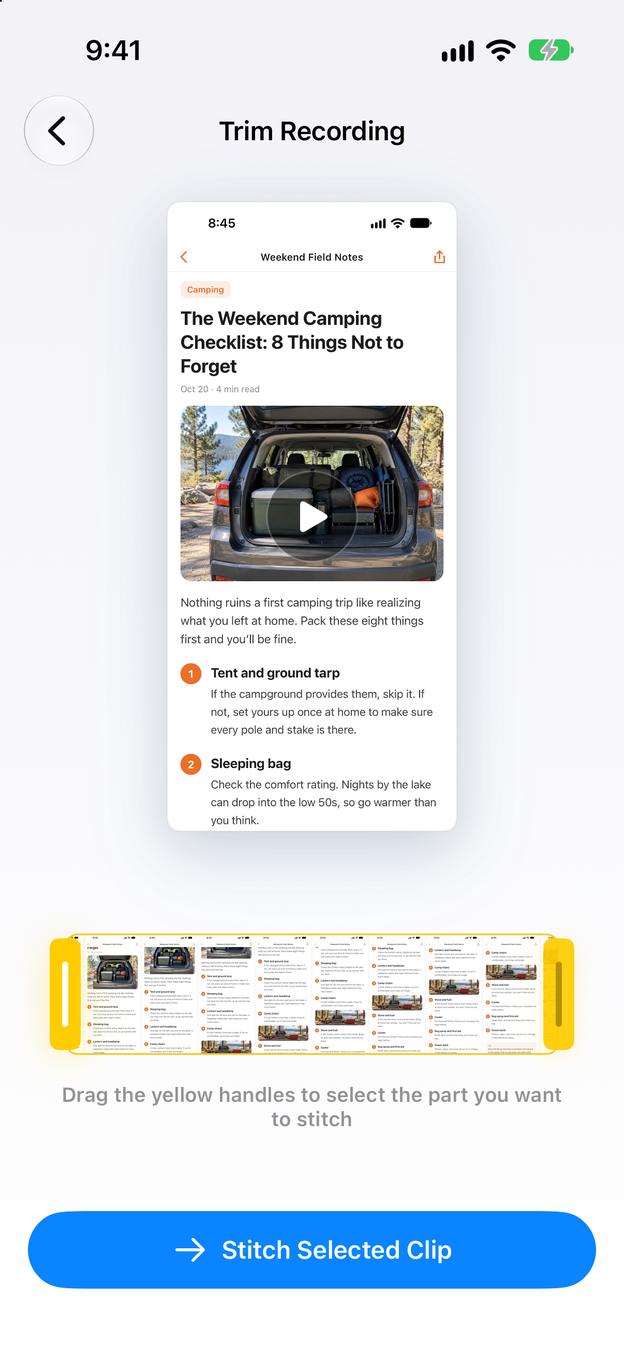
Open Zeta Stitch shortly after you stop recording. With full access to Photos, Zeta finds the new recording and opens it in Trim Recording by itself. Otherwise, go to the Scrollshot tab, tap Choose Screen Recording and pick it.
3Step 3:Trim and stitch
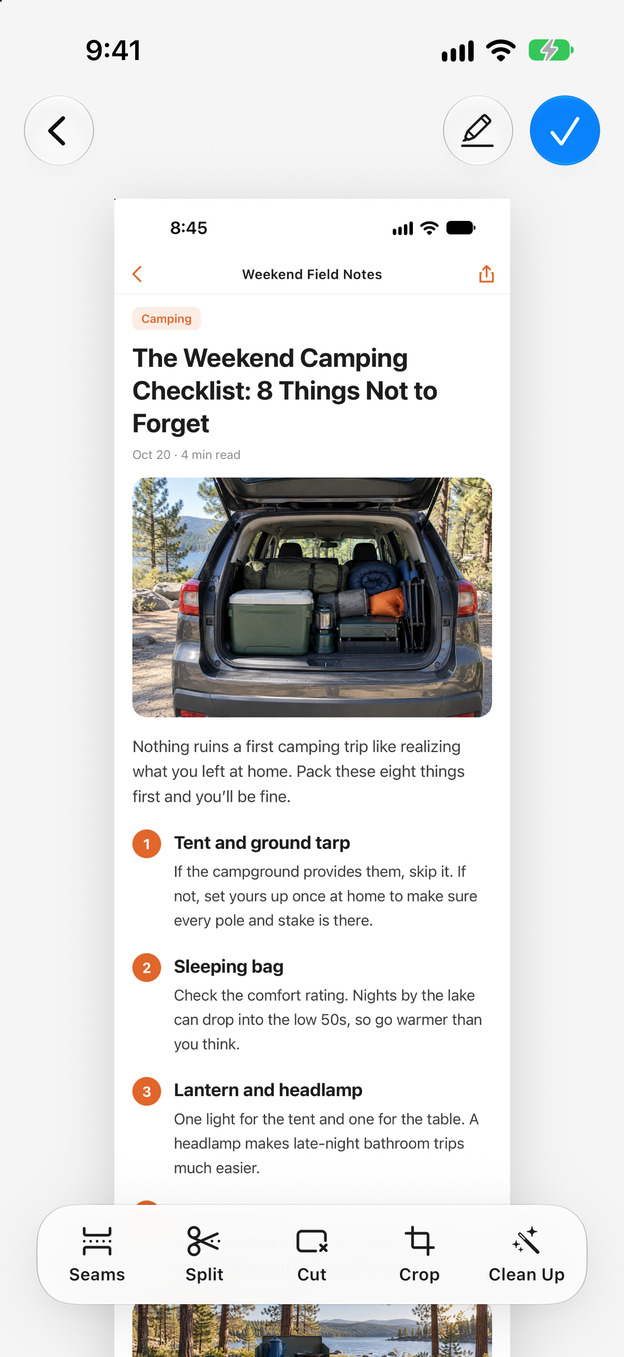
Drag the yellow handles to keep only the part where you scroll, without the countdown or anything after you stopped. Tap Stitch Selected Clip, and Zeta opens the long screenshot in the editor.
4Step 4:Save the long screenshot
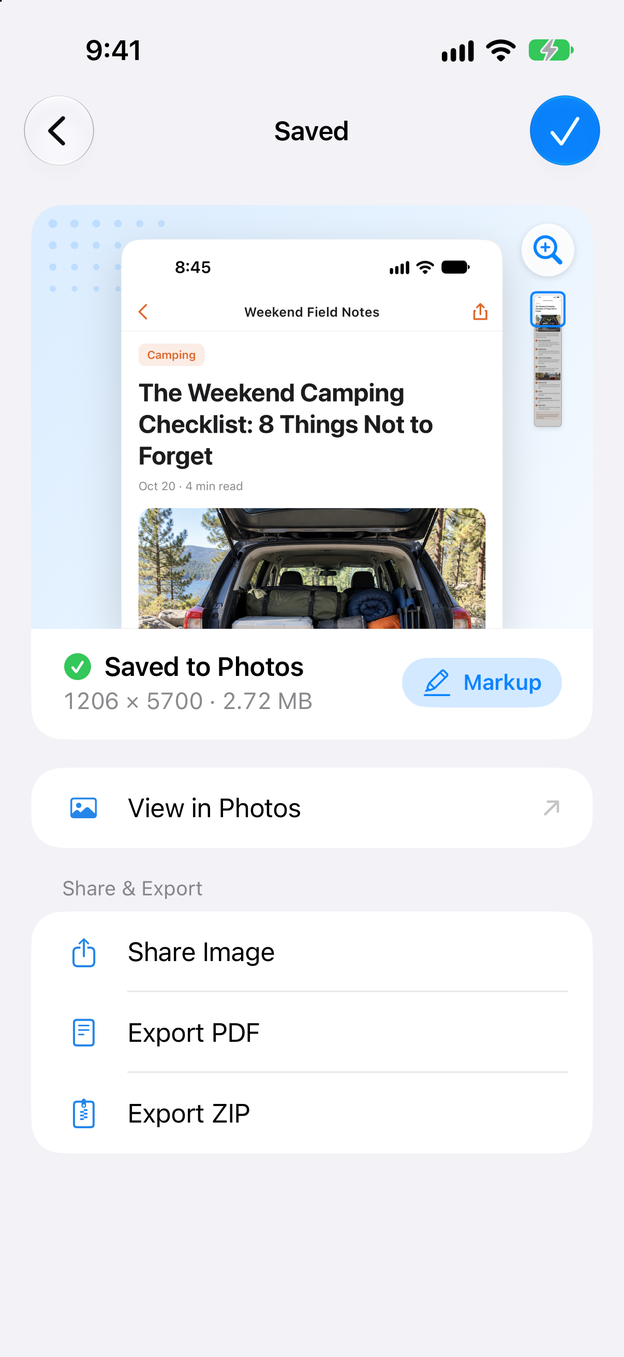
Check the result and tap the check mark to save it to Photos. On the Saved screen you can share it, export a PDF, and delete the original recording after you confirm.
Tips for a good Scrollshot
- Scroll slowly and evenly. One long, steady swipe after another works better than quick flicks. Zeta needs to see every part of the page go past.
- Pause at the start and the end. A second of stillness before you scroll and after you reach the end gives Zeta a clean first and last frame.
- Let the page load first. Pictures that appear halfway through the recording can leave gaps.
- Trim tightly. In Trim Recording, cut off the countdown, Control Center and anything after you stopped scrolling.
- Avoid pop-ups. Notifications and banners that slide over the page during the recording can end up in the long image. Turning on a Focus while you record keeps them away.
- Clean up afterwards. In the editor, Clean Up tidies the status bar and removes the scroll bar.
Export options
The result is a normal long image. Save it to Photos, share it right away, export a one-page PDF (how to save a long screenshot as a PDF) or a ZIP file. If the recording was made at a lower resolution, Zeta tells you the long image may look less sharp, so you can record again with the system’s Screen Recording.
Questions and answers
Can I record with Zeta directly instead?
Yes. In Control Center, touch and hold Screen Recording, choose Zeta Scrollshot and tap Start Broadcast. Recording stops by itself shortly after you stop scrolling. The system’s own Screen Recording gives a sharper result, which is why Zeta suggests it first.
Why is the long screenshot blank or missing a section?
Recording again usually fixes it. Wait until the page has loaded, scroll a little more slowly, pause for a second at the beginning and the end, and keep pop-ups out of the way.
Does Zeta record sound or keep the video?
Zeta Scrollshot never records sound. A recording made with the system’s Screen Recording is in your Photos library like any video; after saving the long screenshot you can delete it from the saved screen. Zeta Scrollshot keeps only your latest recording inside the App, and the next one replaces it. Nothing is uploaded.
Is a recording better than screenshots?
For long pages and feeds, usually: one smooth scroll replaces a dozen screenshots and you can’t forget a part. For a short chat or receipt, two or three screenshots and Long Stitch are just as quick. See how to screenshot a whole chat.