How to Screenshot an Entire Web Page on iPhone
To screenshot an entire web page on iPhone as one image, take overlapping screenshots while you scroll, then select them in Zeta Stitch and tap Long Stitch. Or record your screen while you scroll and let Scrollshot turn the recording into one long screenshot. Both work in any browser or app, and the result is a picture in Photos.
Why the iPhone can’t do this on its own
A screenshot on iPhone only captures what is on the screen. Safari adds a Full Page option to the screenshot editor, but many of the pages you read aren’t in Safari: in-app browsers, news and shopping apps and social feeds don’t offer it, and it is meant for saving a document rather than a picture you can mark up and send like any photo.
To keep a whole recipe, article, thread or guide as one image, you need to capture it in pieces and put the pieces together without gaps or repeats. That’s the part Zeta Stitch does for you.
Step by step with Zeta Stitch
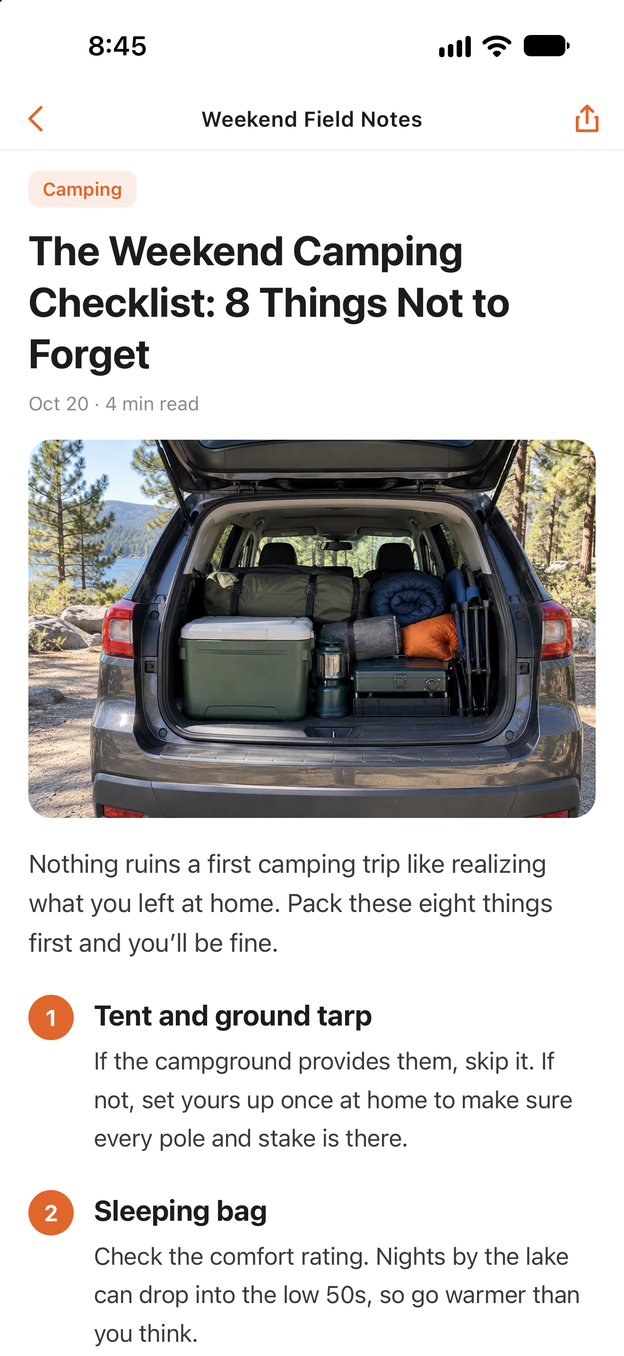
1Step 1:Take screenshots as you scroll down the page
Press the side button and volume up together, scroll down, and take the next screenshot while a few lines of the last one are still on screen. Repeat to the end of the part you want.
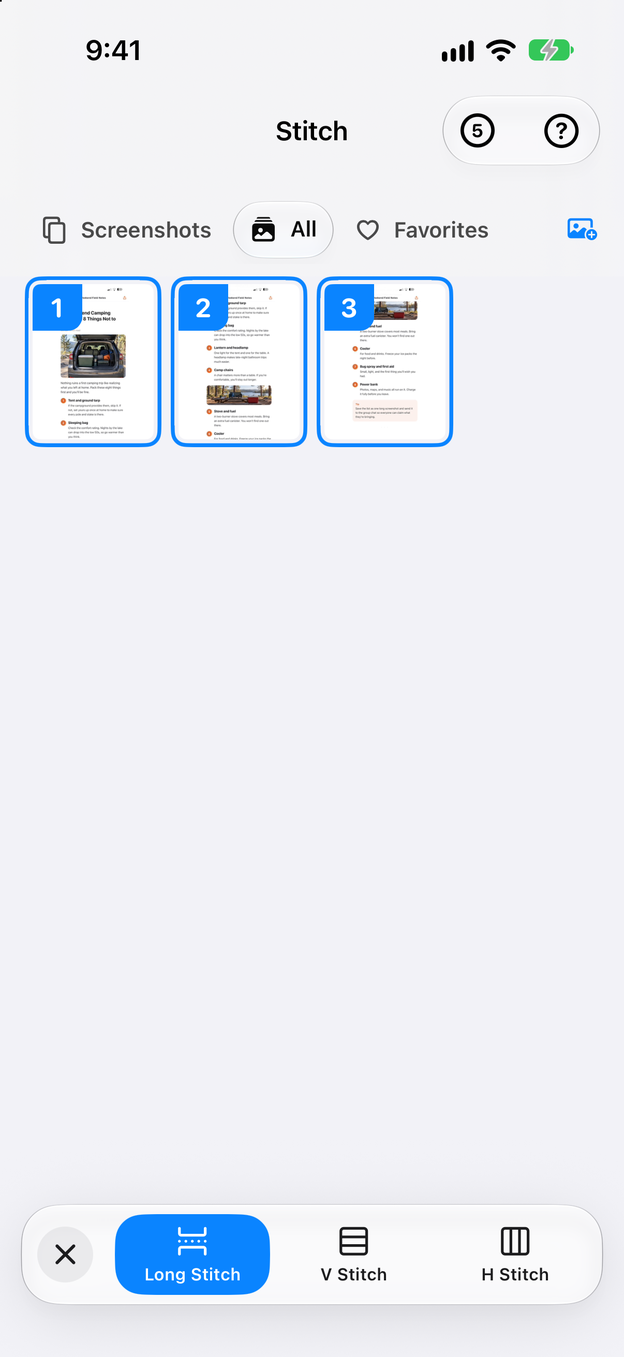
2Step 2:Select the screenshots and tap Long Stitch
In Zeta Stitch, tap the screenshots in order and tap Long Stitch. Zeta matches the overlapping lines and joins the page into one image.
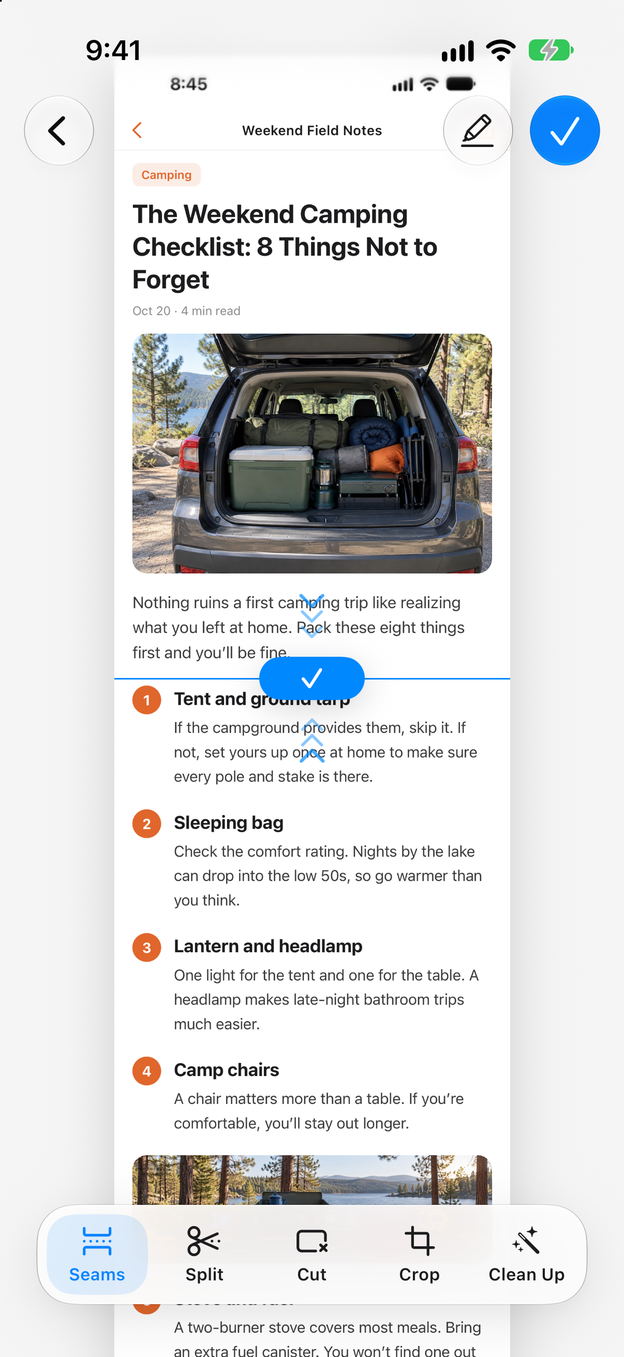
3Step 3:Check the joins and trim the edges
Scroll through the result in the editor. Tap Seams to move a join, Crop to trim the top and bottom, or Cut to remove an ad or a block you don’t need from the middle.
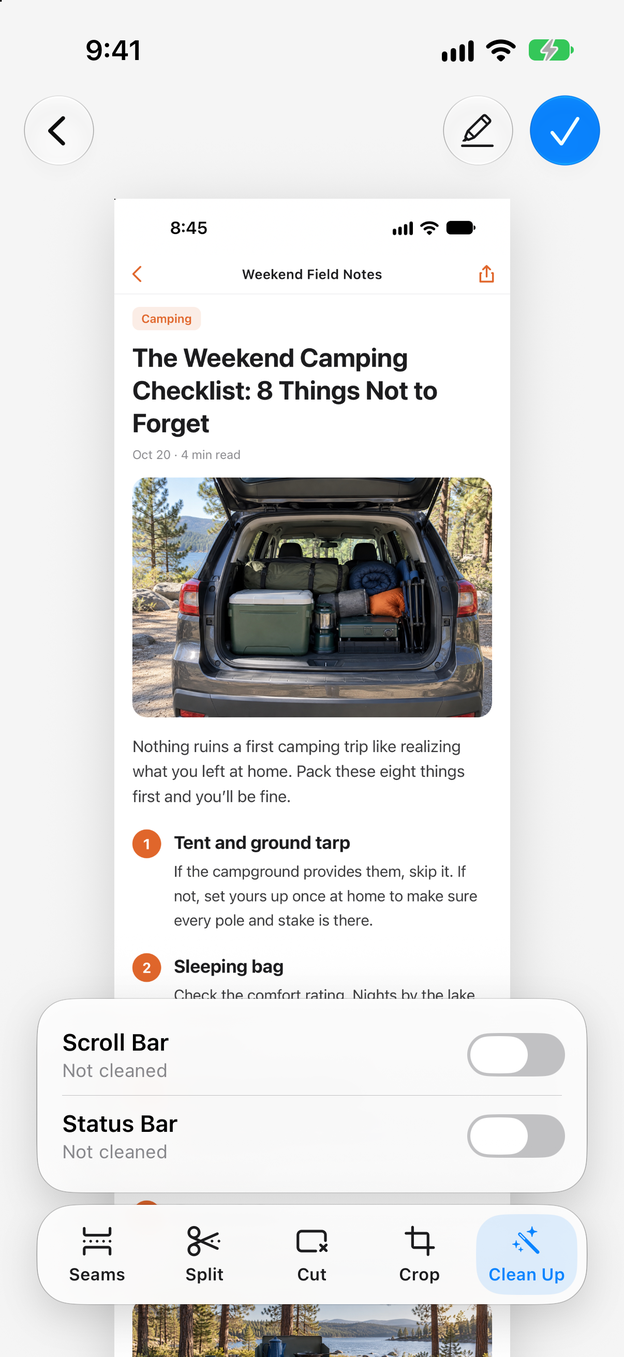
4Step 4:Clean up the status bar and scroll bar
Tap Clean Up to tidy the status bar and remove the browser’s scroll bar, so it doesn’t show as a stripe down the side of the long image.
Tips for a clean full-page screenshot
- Load the page first. Scroll to the bottom once and back, so lazy-loaded pictures are there when you capture.
- Close pop-ups and banners. Cookie notices and app banners that sit over the text will be in your screenshots.
- Keep a few lines of overlap. Zeta needs some of the same text in two neighbouring screenshots to find where they meet.
- Try a screen recording for long pages. Record your screen while you scroll slowly, then open the recording in Scrollshot. See how to turn a screen recording into a long screenshot.
- Cut what you don’t need. Tap Cut to remove an ad or a comments section from the middle, then Split if the image is still too long to share in one piece.
Export options
Save the long screenshot to Photos, share it right away, or tap Export PDF for a one-page PDF of the whole page, ready to read later or print. Saving a long screenshot as a PDF explains the choices. Export ZIP sends the image as a file, which messaging apps don’t shrink.
Questions and answers
Doesn’t Safari already have a Full Page screenshot?
It does. Take a screenshot in Safari, tap the preview and choose Full Page. It only appears in Safari and some other apps, though, and it is meant for saving the page as a document. Zeta works in any app and gives you an image in Photos that you can edit, mark up and share.
Does it work in Chrome, in-app browsers and news apps?
Yes. Zeta stitches screenshots or a screen recording, so any page you can scroll and capture works, whichever app shows it.
The page has a sticky header that repeats in every screenshot. What can I do?
Scroll so that the bar never covers the lines that overlap. If it still shows up in the middle of the long image, select that strip with Cut in the editor and delete it.
How long can the page be?
As long as you like, but very long images are hard to read and to send. Zeta may scale a result down to fit what can be saved, and tells you when it does. For a very long page, stitch it in sections, or split the long image into parts in the editor.