How to Screenshot a Whole Chat Conversation on iPhone
To screenshot a whole chat on iPhone, take a screenshot, scroll a little so the next one overlaps the last by two or three lines, and repeat to the end. Then open Zeta Stitch, select the screenshots and tap Long Stitch. Zeta finds where they overlap and joins them into one long image you can save or share.
Why the iPhone can’t do this on its own
iOS takes a screenshot of what is on the screen, and nothing more. The Full Page option in the screenshot editor only appears in Safari and a few other apps that show documents. Messaging apps don’t offer it, so a conversation longer than one screen ends up as a pile of separate screenshots.
Sending those one by one works, but the other person has to put them back in order, and the same messages often appear twice at the edges. One long image keeps the whole conversation readable from top to bottom, in one file you can save, print or forward.
Step by step with Zeta Stitch
1Step 1:Take overlapping screenshots
Open the chat and press the side button and volume up together. Scroll a little, keep two or three messages from the last screenshot on screen, and take the next one. Repeat until the conversation is covered.
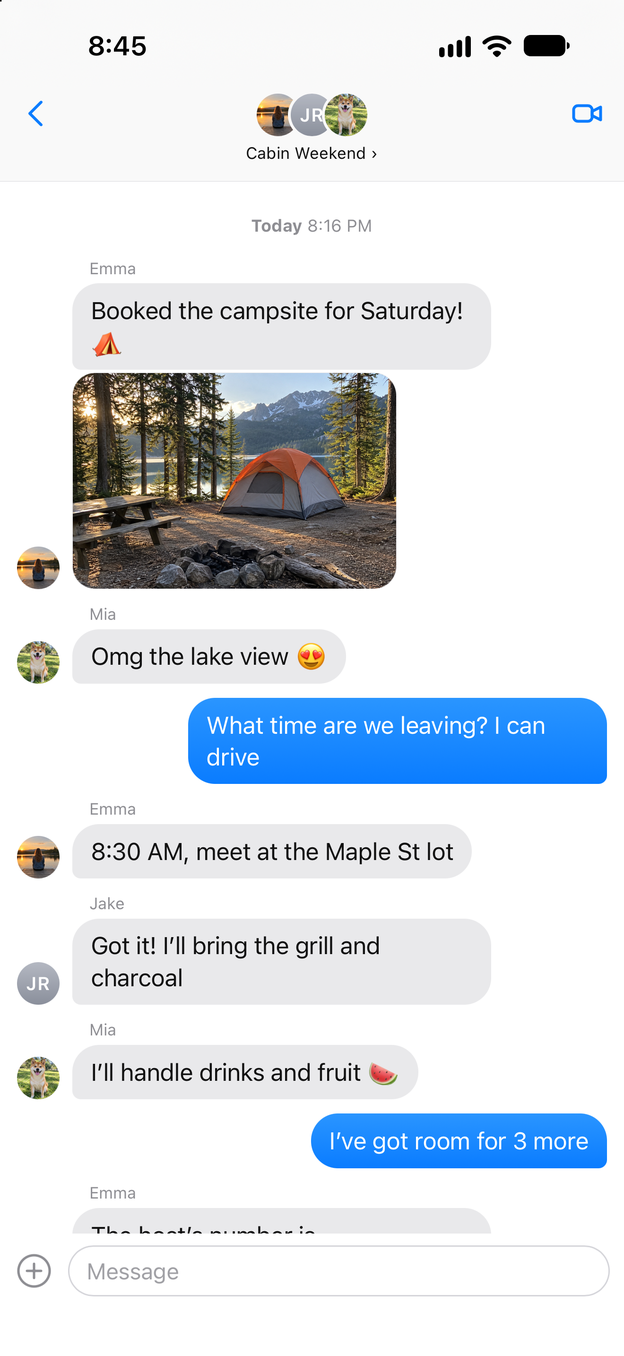
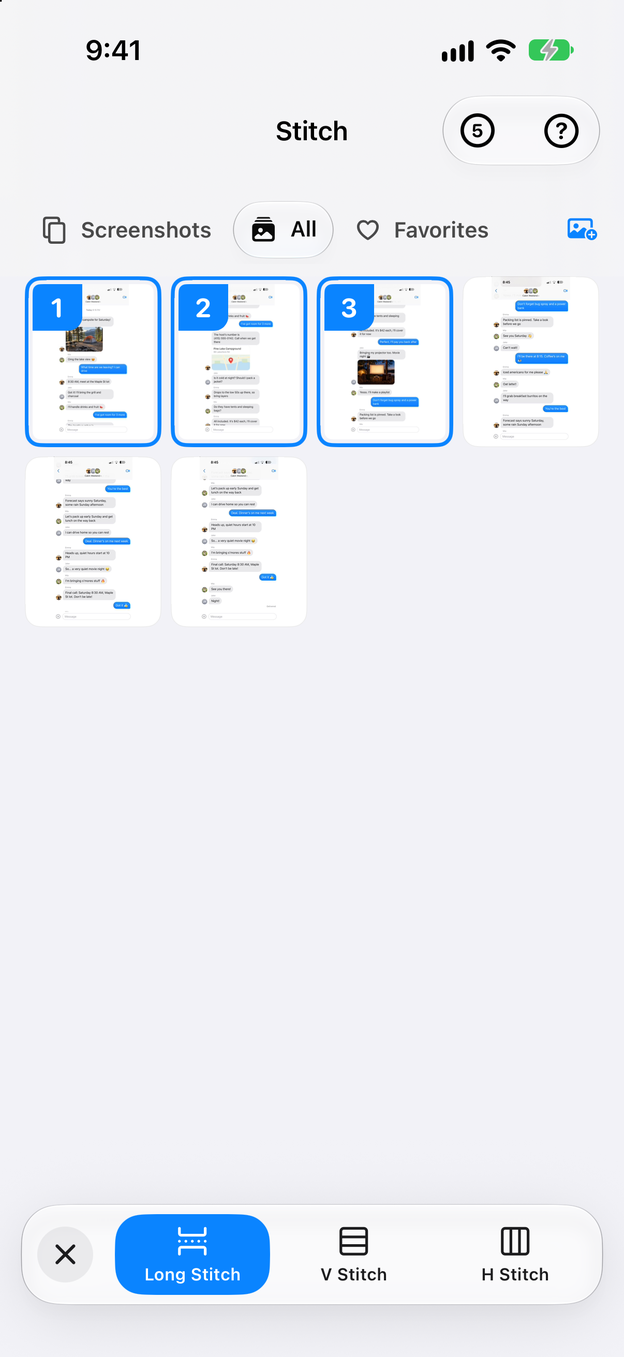
2Step 2:Select them in Zeta and tap Long Stitch
Open Zeta Stitch and tap your screenshots in order, or let Zeta pick up the latest ones by itself if it has full access to Photos. Then tap Long Stitch.
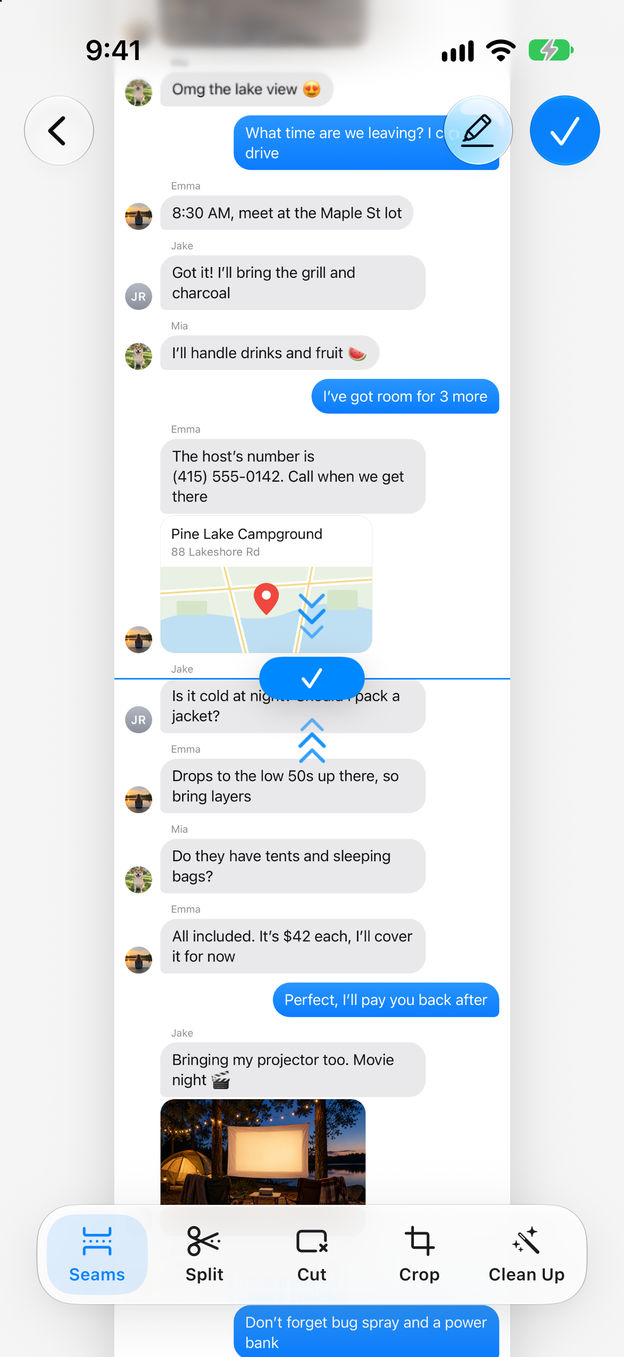
3Step 3:Check the seams
Zeta lines the screenshots up and shows the result in the editor. If a message appears twice or a line is cut, tap Seams, zoom in on that seam and drag it into place.
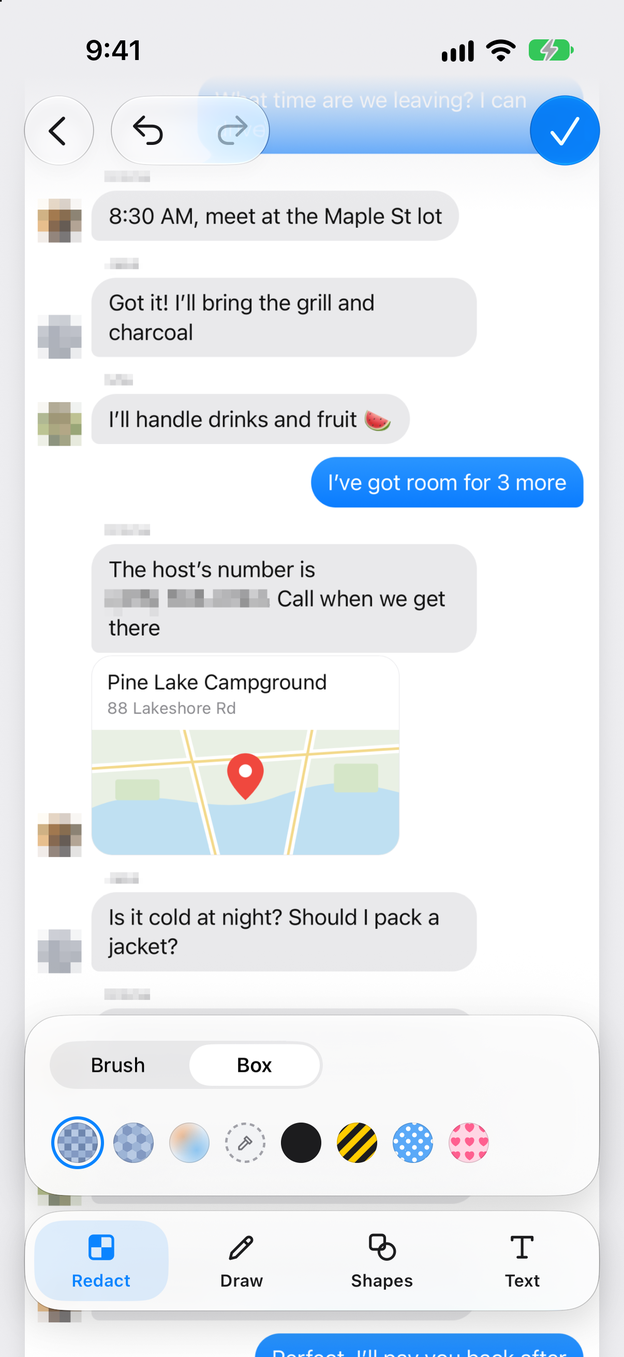
4Step 4:Hide names and numbers if you share it
Tap the highlighter button at the top right to open Markup, then Redact, and brush over profile photos, names or phone numbers. Blur, Mosaic, Black and five other styles are there.
5Step 5:Save, then share or export
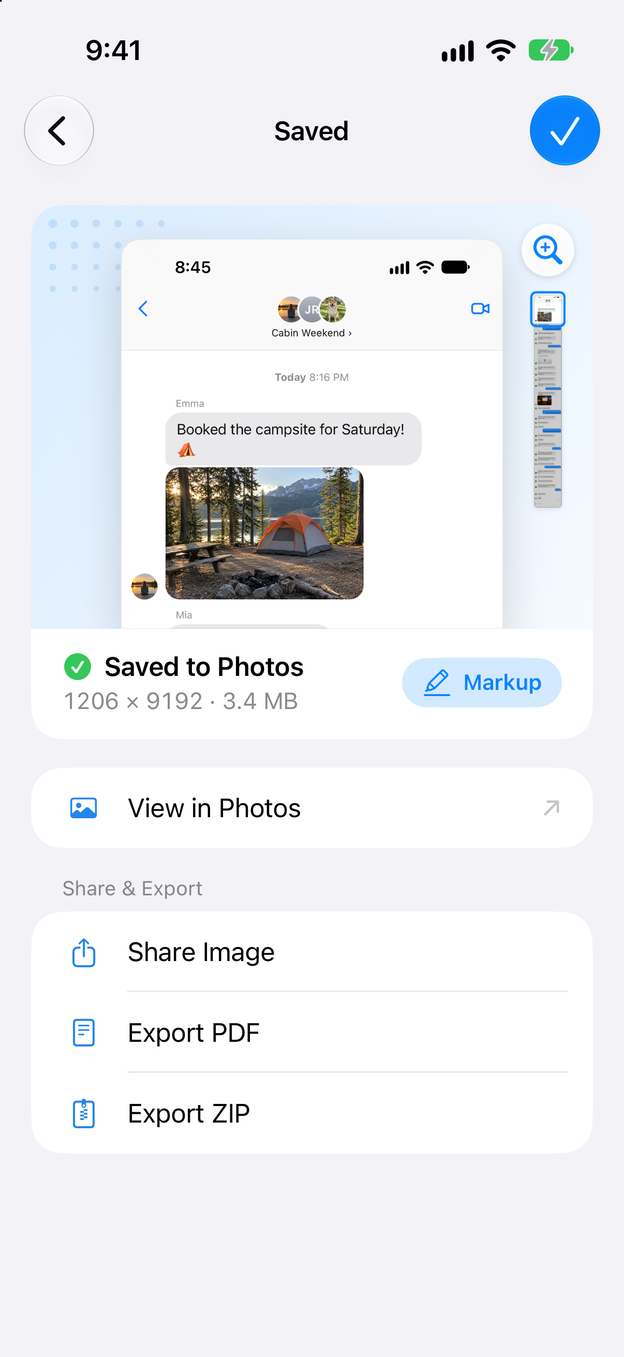
Tap the check mark. Zeta saves the long image to Photos and opens the Saved screen, where you can share it, export a PDF or ZIP, and delete the original screenshots after you confirm.
Tips for a clean stitch
- Overlap matters more than anything. Two or three lines of the same messages in both screenshots let Zeta find the exact join. If you scroll too far, there is nothing to match.
- Wait for photos and stickers to load. If the chat has many pictures, scroll through it once before you start, so they don’t appear as grey boxes in some screenshots and not in others.
- Stitch very long chats in sections. A year of messages makes an image too tall to read. Make one long image per day or topic instead.
- Tidy the status bar. In the editor, tap Clean Up to replace the status bar with a clean one (full signal and battery, same time), crop it off, or erase it.
- Mind the people in the chat. Before you post a conversation publicly, blur the other person’s name, photo and number. See how to blur private info in a screenshot.
Export options
Tapping the check mark in the editor saves the long image to Photos. In Settings > Images and Export, Maximum Quality keeps the original resolution. The Saved screen that follows has three more ways out:
- Share Image sends it straight to another app. Messaging apps often shrink large images; if the text looks soft after sending, choose the app’s original or full-quality option.
- Export PDF makes a single-page PDF of the whole conversation, handy for email or printing. See saving a long screenshot as a PDF.
- Export ZIP wraps the image in a ZIP file, so it travels as a file instead of a photo.
Questions and answers
Does this work with WhatsApp, Messages, Telegram and LINE?
Yes. Zeta works from your screenshots, so it doesn’t matter which app the chat is in. The same steps work for Messages, WhatsApp, Telegram, Messenger, LINE, Slack, Discord and any other app you can take a screenshot of.
Are my messages uploaded anywhere?
No. The screenshots you choose are processed on your iPhone and never uploaded. Zeta has no account and no analytics, and its App Store privacy label reads “Data Not Collected”.
Part of the chat is repeated or missing. How do I fix it?
Usually two screenshots don’t overlap enough. Take the missing part again with more overlap, or tap Seams in the editor and drag the seam to the right place.
Is there a faster way for very long chats?
Yes. Record your screen while you scroll through the chat and let Scrollshot turn the recording into a long screenshot. You don’t have to take a screenshot every few messages.