How to Fix Screenshots That Won’t Stitch or Line Up on iPhone
When screenshots don’t stitch cleanly, the cause is almost always the overlap, either too little shared content or content that changed between captures. In Zeta Stitch, tap Seams in the editor, tap the button on the wrong seam and drag the image until the lines match. If a part is missing, retake it with more overlap and stitch again.
What it looks like
Typical signs that a join went wrong:
- A line appears twice. The same message or sentence shows up just above and just below a seam.
- Something is cut or missing. A word is sliced in half, a photo is shorter than it should be, or a few lines between two screenshots are gone.
- The join lands in the wrong place. On a page with identical rows, such as a table or a list of similar items, the text suddenly jumps back or forward.
- Something that should stay on top shows up in the middle. A header, a tab bar or a keyboard appears again partway down the long image.
Why it happens
Zeta joins two screenshots by matching the bottom of one with the top of the next. When that shared part is too small, changed between captures or appears in more than one place, the match goes wrong.
- Too little overlap. If you scroll more than a screen between screenshots, there is nothing to match, and the part in between isn’t in any of them.
- Content that changed between captures. Pictures that were still loading, a video or animated sticker, a “2 min ago” timestamp that ticked over, or a notification banner that slid over the page.
- Content that repeats. Blank space, identical rows or a pattern can match in several places, so the join may land a row too high or too low.
- Parts of the screen that don’t scroll. Headers, tab bars and the keyboard stay put while the page moves, so they can cover the overlap or turn up again in the middle of the long image.
How to fix it in Zeta Stitch
1Step 1:Find the seam that’s off
Scroll through the long image in the editor. A bad join shows up as a line or message that appears twice, a word cut in half, or a jump in the text. Pinch to zoom in for a closer look.
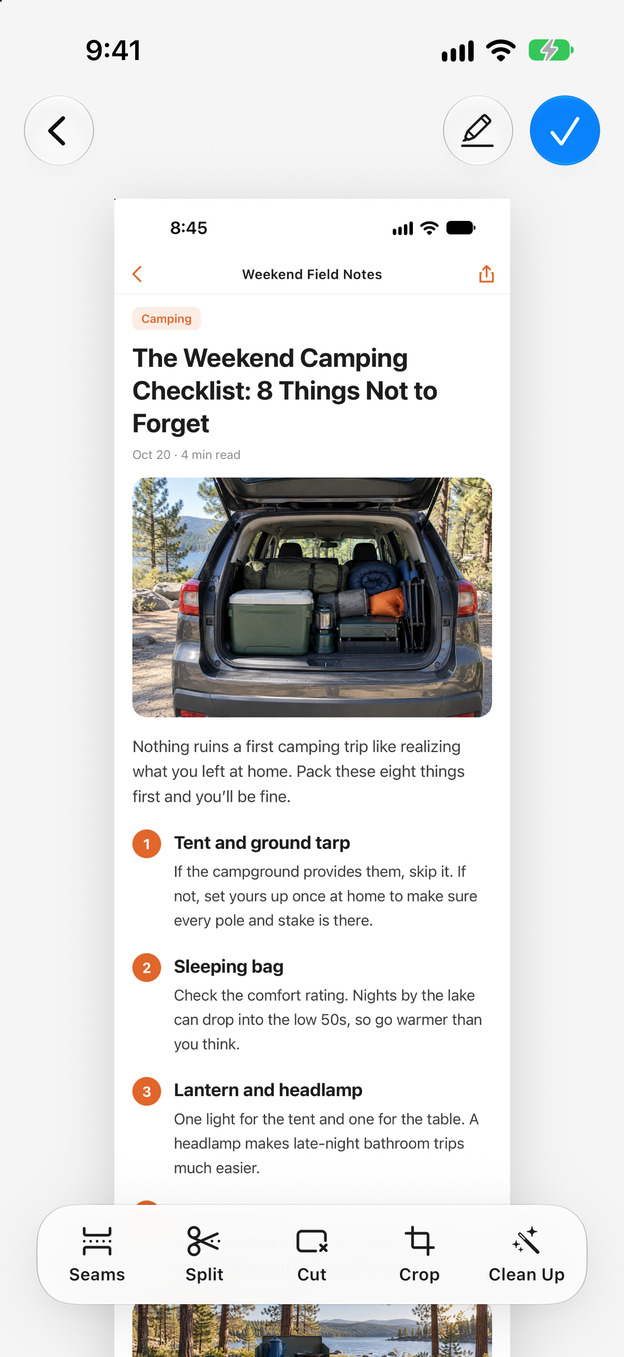
2Step 2:Tap Seams and pick the join
Tap Seams in the toolbar. Every join between two screenshots gets a button; tap the one on the seam you want to fix.
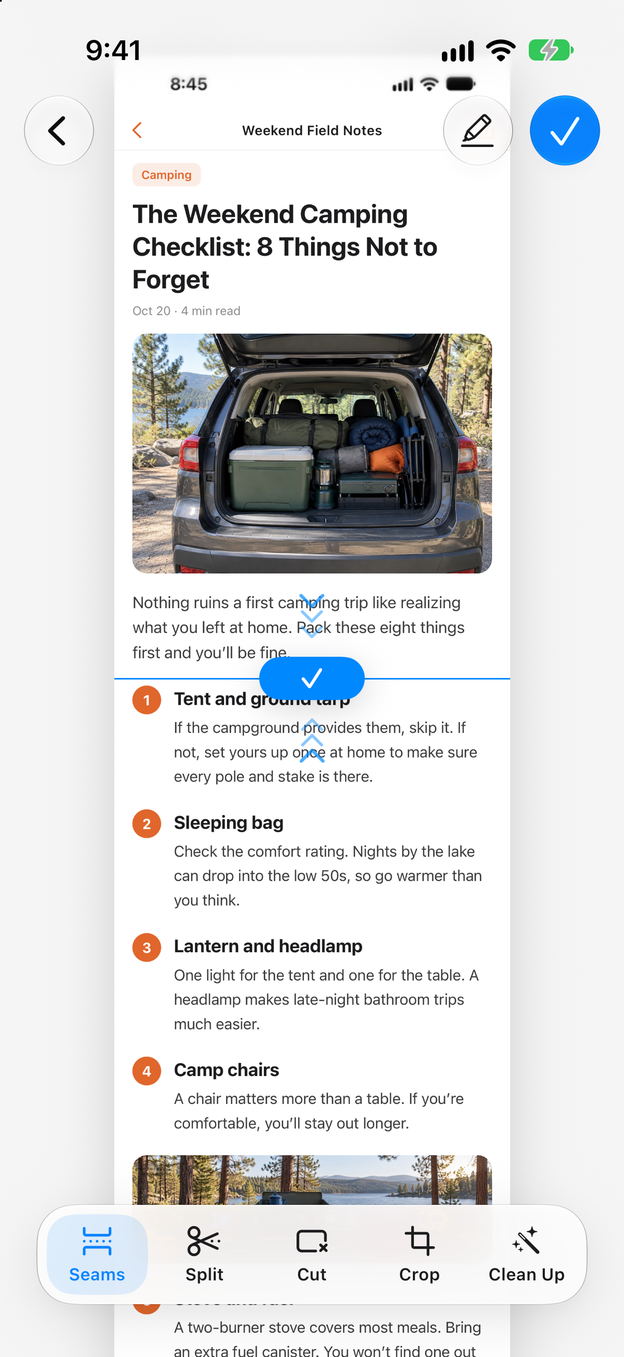
3Step 3:Drag until the lines match
Drag the image up or down until the text above and below the seam lines up, then tap the button again to confirm. When it’s off by only a line or two, zoom in first.
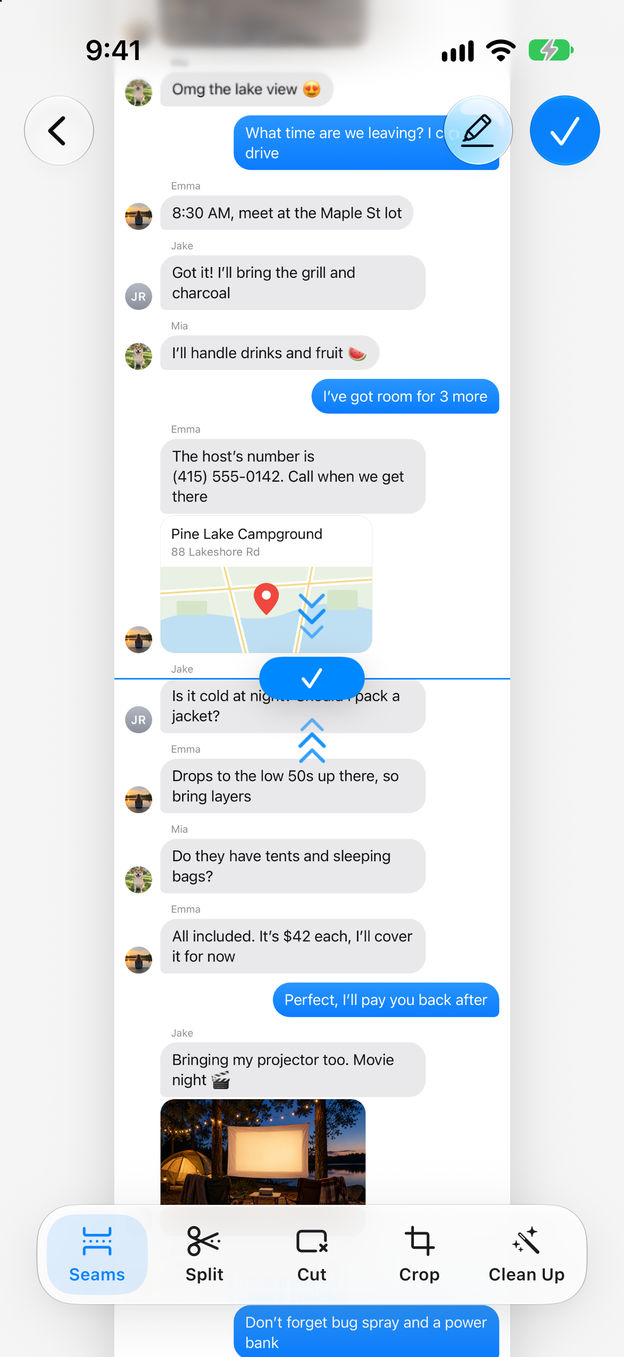
4Step 4:Retake a missing part with more overlap
If something is missing, no seam can bring it back. Take that part again with two or three lines of the previous screenshot still on screen, then select all the screenshots in order and tap Long Stitch.
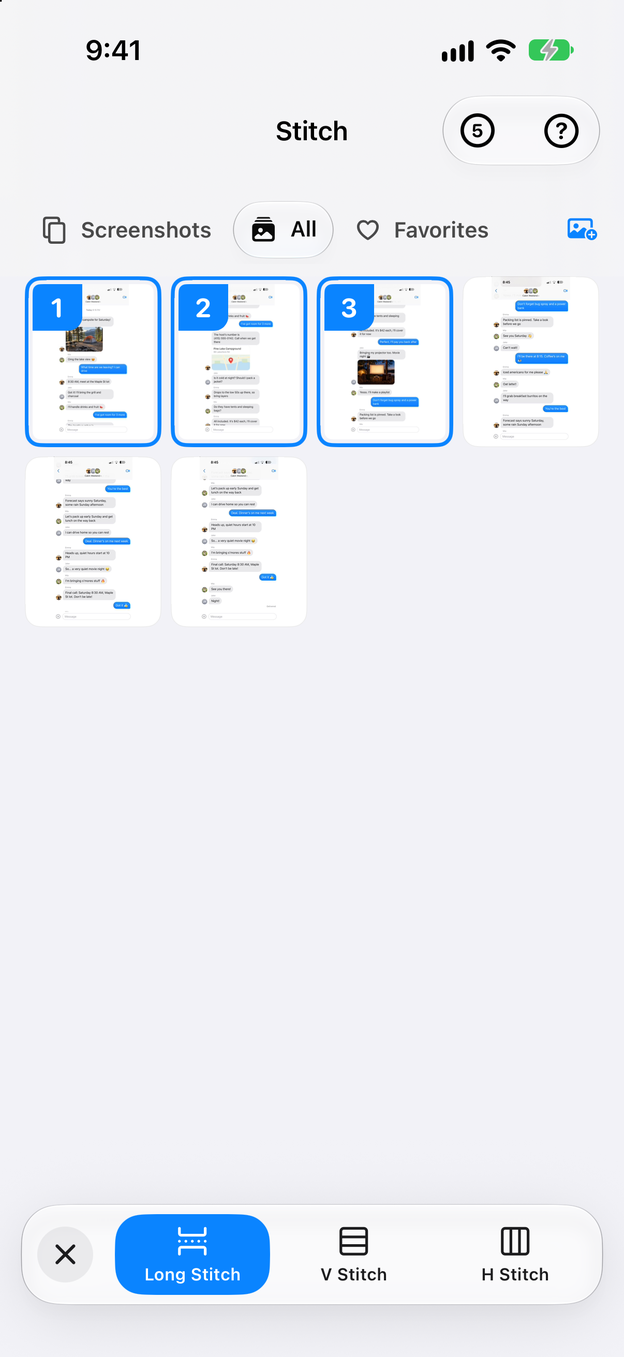
5Step 5:Remove leftovers, then save
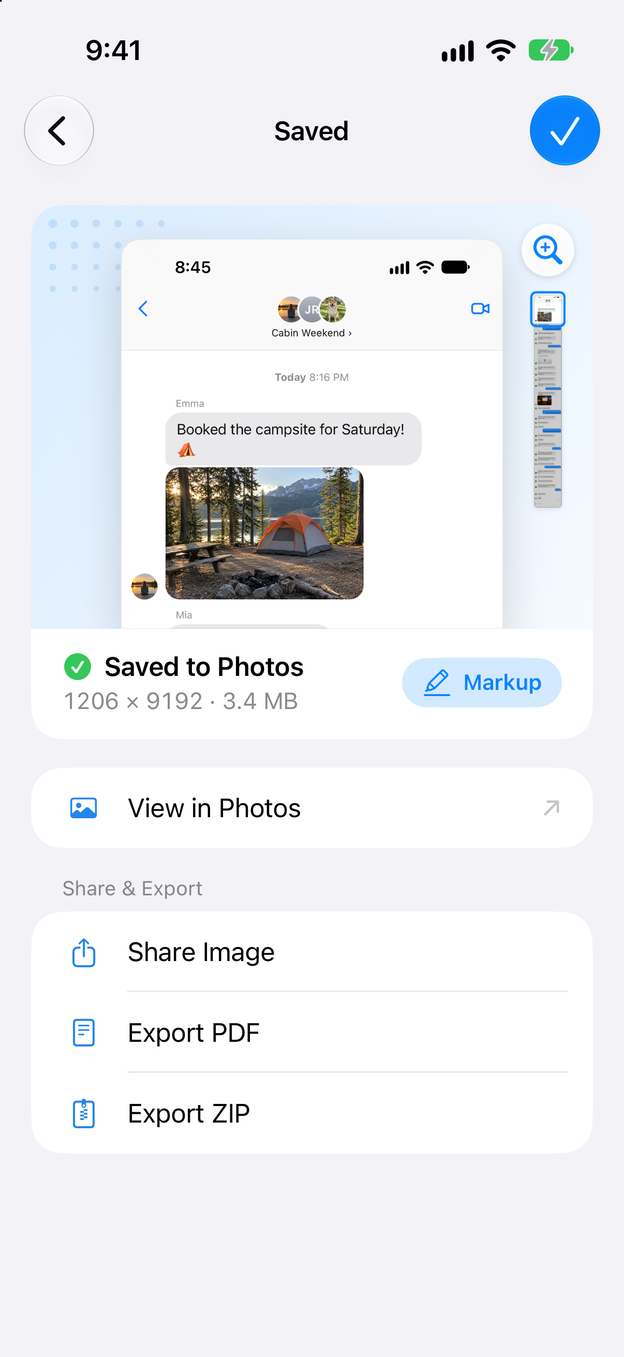
Use Cut to delete a block that still appears twice, such as a header that stayed on screen, and Crop to trim the edges. Tap the check mark to save the long image to Photos.
How to avoid it next time
- Keep two or three lines of overlap. Scroll a little less than a full screen each time, so the last lines of one screenshot are the first lines of the next. Don’t scroll too far in one go.
- Let the page load first. If the page has many pictures, scroll through it once before you start, so they don’t appear as grey boxes in some screenshots and not in others.
- Keep the screen still. Close the keyboard, wait for animations to stop and dismiss banners before each screenshot. A Focus keeps notifications away.
- Stitch very long pages in sections. Shorter images are easier to check and to read.
- Record instead of screenshotting. For long feeds, one smooth screen recording replaces a dozen screenshots. See how to turn a screen recording into a long screenshot.
Questions and answers
The screenshots are stitched in the wrong order. What happened?
Long Stitch joins screenshots in the order you select them; the number on each thumbnail shows it. Go back and tap them again from top to bottom. If Zeta picked your latest screenshots by itself, check that none is from another page.
Can I fix a seam after saving?
Saving creates a new image in Photos and leaves your screenshots as they are. If you spot a bad seam later, select the same screenshots again and stitch them, so keep the originals until you’ve checked the result. Zeta always asks before it deletes them.
My screen recording became a long screenshot with a gap. How do I fix that?
Record again: wait until the page has loaded, scroll a little more slowly and pause for a second at the start and the end. See how to turn a screen recording into a long screenshot for more tips.
Are my screenshots uploaded to work out the overlap?
No. Zeta matches and joins the screenshots on your iPhone or iPad and never uploads them. It has no account and no analytics, and its App Store privacy label reads “Data Not Collected”.