How to Save a Long Screenshot as a PDF on iPhone
To save a long screenshot as a PDF on iPhone, make the long screenshot in Zeta Stitch with Long Stitch or Scrollshot, save it, and tap Export PDF on the Saved screen. Zeta puts the whole image on one PDF page and opens the share sheet, where you can save it to Files, mail it or print it.
Why the iPhone can’t do this on its own
On iPhone you can print or share a photo as a PDF through the share sheet, but that only works with a picture you already have, and a long chat, page or receipt doesn’t fit in one screenshot. You would first need one tall image, and then a PDF that doesn’t shrink it to fit a paper page.
A PDF is often what you need for paperwork: an expense report wants a file, a school form asks for a document, and a printer or an email to a company is happier with a PDF than with ten photos.
Step by step with Zeta Stitch
1Step 1:Make the long screenshot
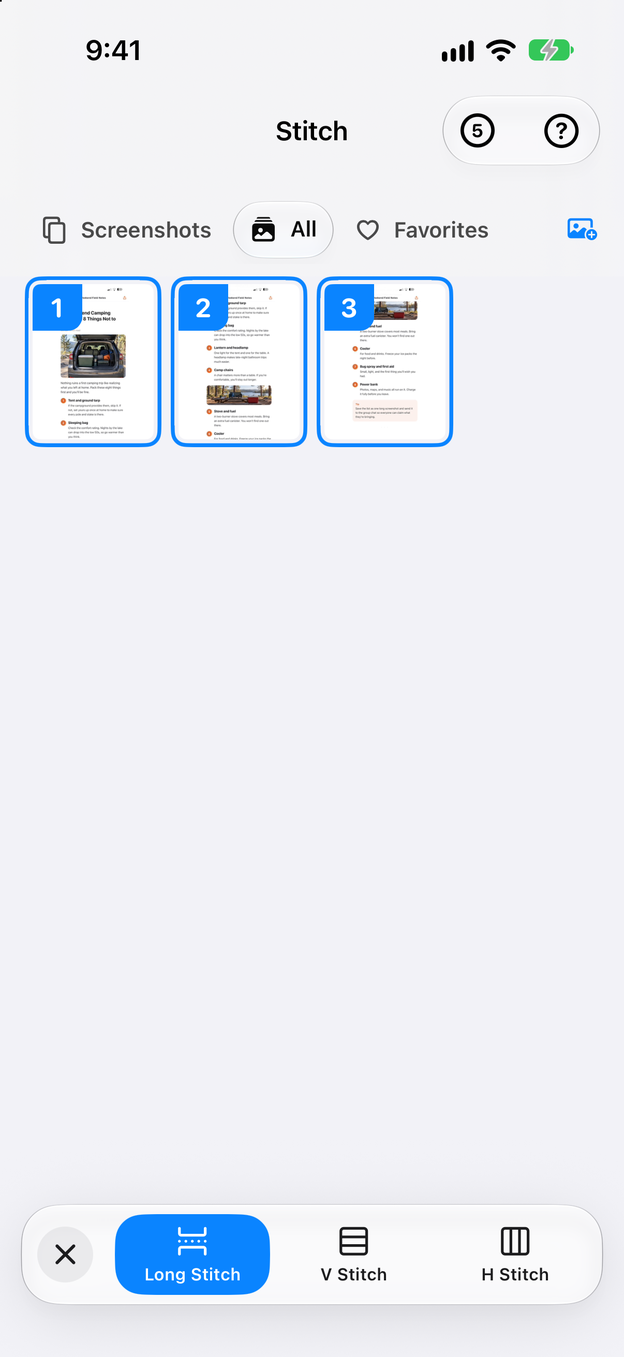
Select your screenshots and tap Long Stitch, or turn a screen recording into a long screenshot with Scrollshot.
2Step 2:Check it before you export
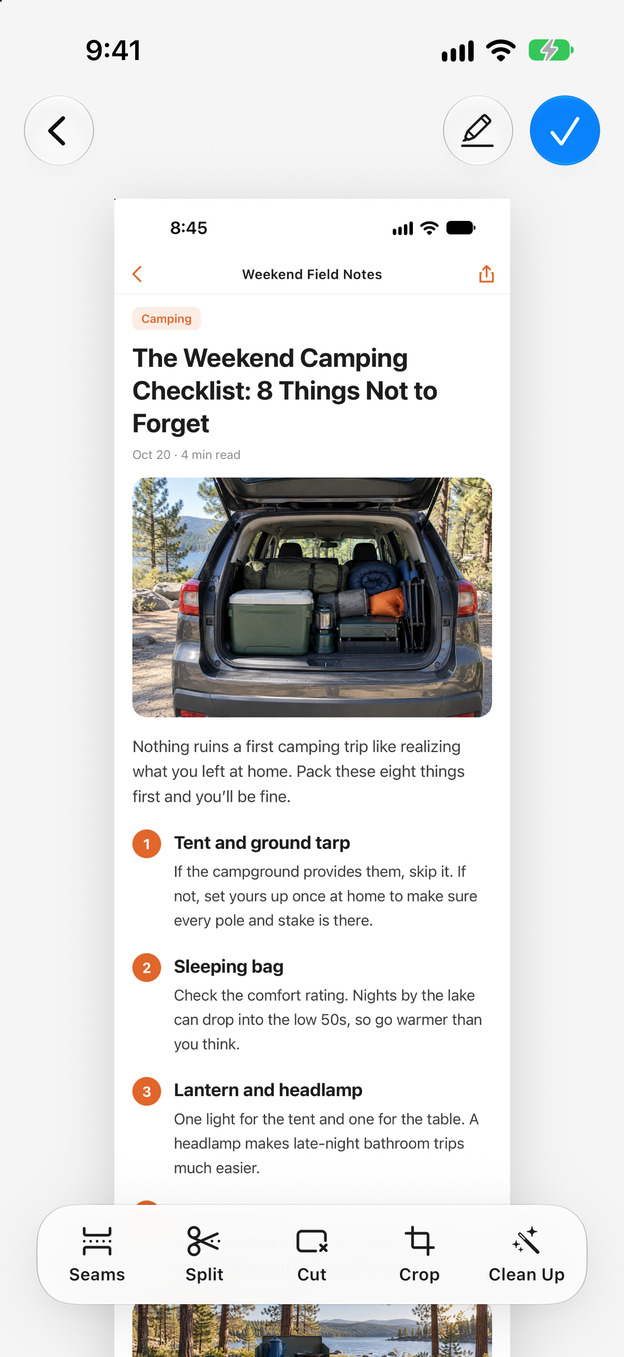
Scroll through the result in the editor. Crop the edges, cut out parts you don’t need, and blur anything private, because the PDF shows exactly this image.
3Step 3:Tap Export PDF
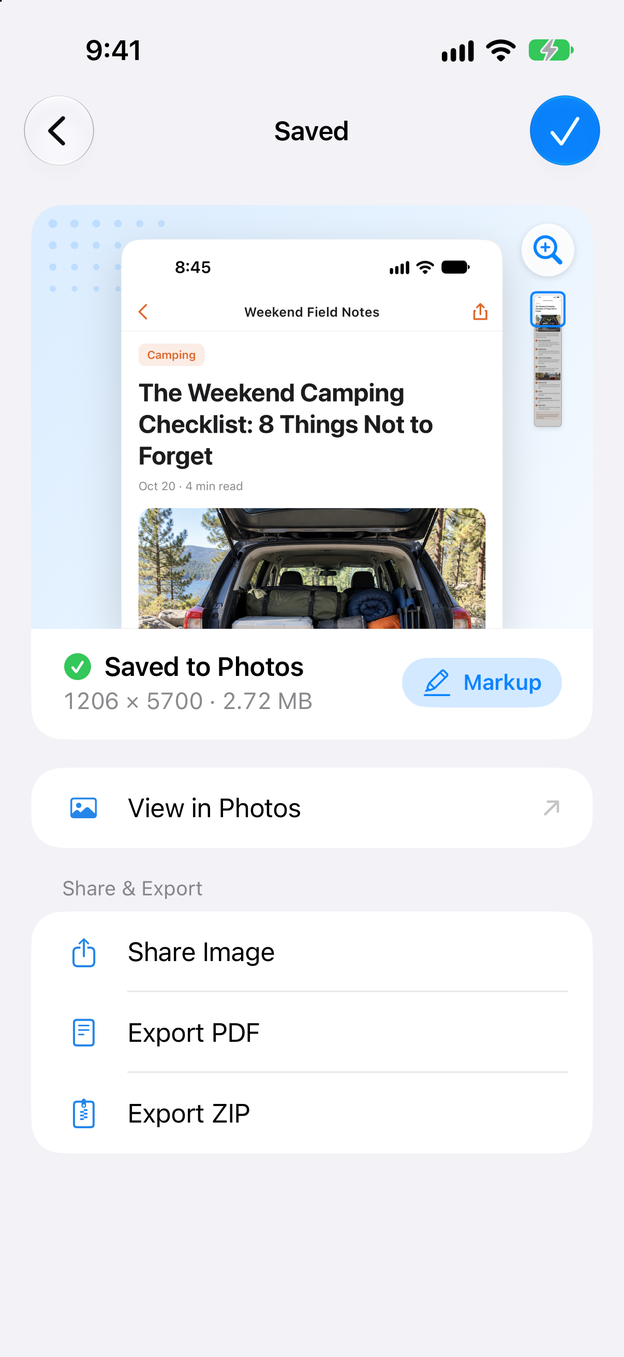
Tap the check mark to save the image, then tap Export PDF on the Saved screen. Zeta creates the PDF on your iPhone in a moment.
4Step 4:Save it to Files, mail it or print it
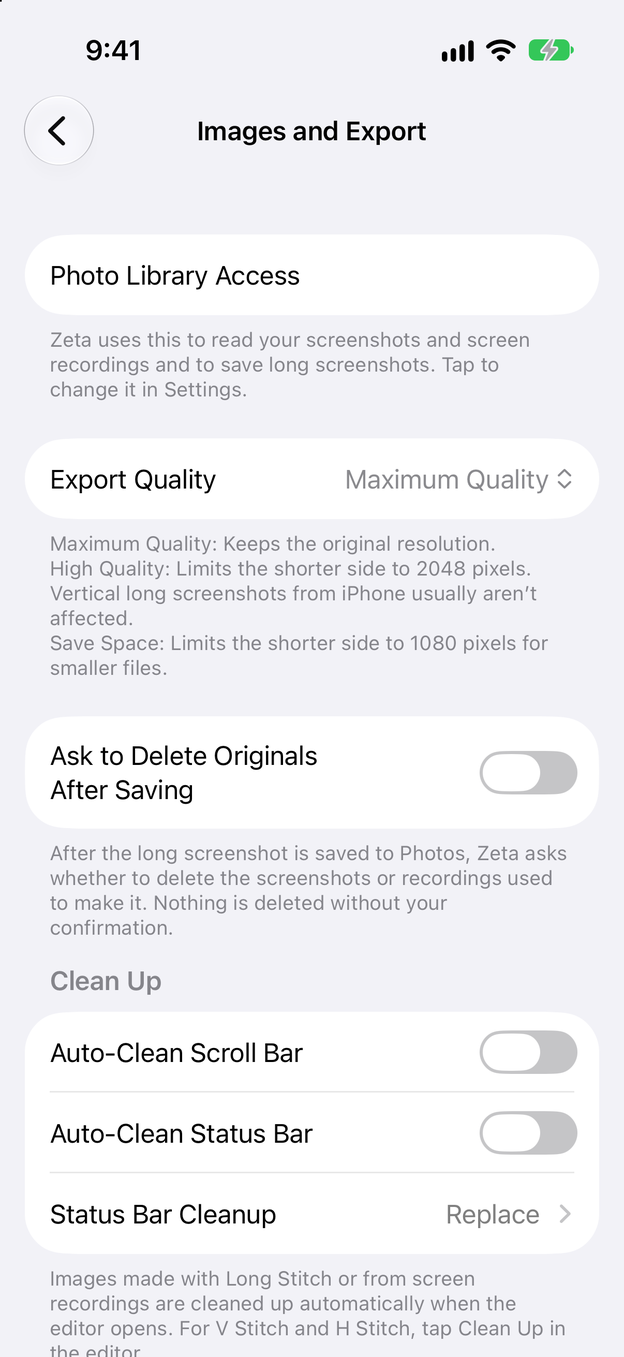
The share sheet opens with the PDF. Choose Save to Files to keep it, Mail or a messaging app to send it, or Print. For the sharpest PDF, set Settings > Images and Export to Maximum Quality first.
Tips for a useful PDF
- Check the resolution first. Settings > Images and Export > Maximum Quality keeps the original resolution. High Quality limits the shorter side to 2048 pixels, which is still plenty for a vertical long screenshot from iPhone.
- Split before you print. A single page several metres long won’t print well. Use Split in the editor to cut the long image into page-sized parts.
- Blur before you send. Once a PDF leaves your phone you can’t take it back. See how to blur private info in a screenshot.
- Name the file when you save. In Files, rename the PDF with the date and what it is, so it’s easy to find later.
Export options
Tapping the check mark in the editor saves the long image to Photos. The Saved screen then offers three options. Share Image sends the image as it is. Export PDF creates the one-page PDF. Export ZIP packs the image into a ZIP file. All of them are made on your device, and none of them uploads your screenshots.
Questions and answers
Does the PDF split the long screenshot into pages?
No. Zeta places the whole long image on a single PDF page, so it reads from top to bottom without breaks, just like the image. If you need separate pages, split the long image in the editor first and export each part.
Is the text in the PDF searchable?
No. The PDF contains the image as it is, the same as the long screenshot. It is a convenient way to file, send and print the image, not a text document.
Where does the PDF go?
Wherever you choose in the share sheet. Zeta doesn’t upload it; it only exists on your device until you save or send it.
What is Export ZIP for?
It puts the long image into a ZIP file. Some apps shrink photos you send but leave files alone, so a ZIP arrives at full size.