How to Remove the Scroll Bar from a Long Screenshot on iPhone
To remove the scroll bar from a long screenshot on iPhone, open it in the Zeta Stitch editor, tap Clean Up and turn on Scroll Bar. Zeta detects the thin bar along the right edge of each screenshot and erases it. To do it every time, turn on Auto-Clean Scroll Bar in Settings. Scroll bar removal is free and unlimited.
What it looks like
A thin grey line, or a row of short dashes at different heights, runs down the right edge of the long image. In dark mode it’s light grey. In a long screenshot made from a screen recording, the bar can be there along the whole length.
It’s easy to miss on the phone and very visible once the image is printed, shared or zoomed in. In a tutorial, a long receipt or a page of notes, it looks like a mark on the paper.
Why it happens
The bar is the iPhone’s scroll indicator. iOS shows it whenever a page scrolls and fades it out a moment after you stop. Take a screenshot right after scrolling, and it’s in the picture.
A long screenshot made from several screenshots catches it almost every time, because you scroll, capture, scroll again and capture again. And since the indicator moves down as you scroll, it lands at a different height in each screenshot, which is where the row of dashes comes from. A screen recording catches it the whole time you scroll.
iOS has no setting that hides the scroll indicator, and Safari’s Full Page option only works in some apps. Waiting a second after every scroll works, but it’s slow and easy to forget halfway down a long page.
How to remove it with Zeta Stitch
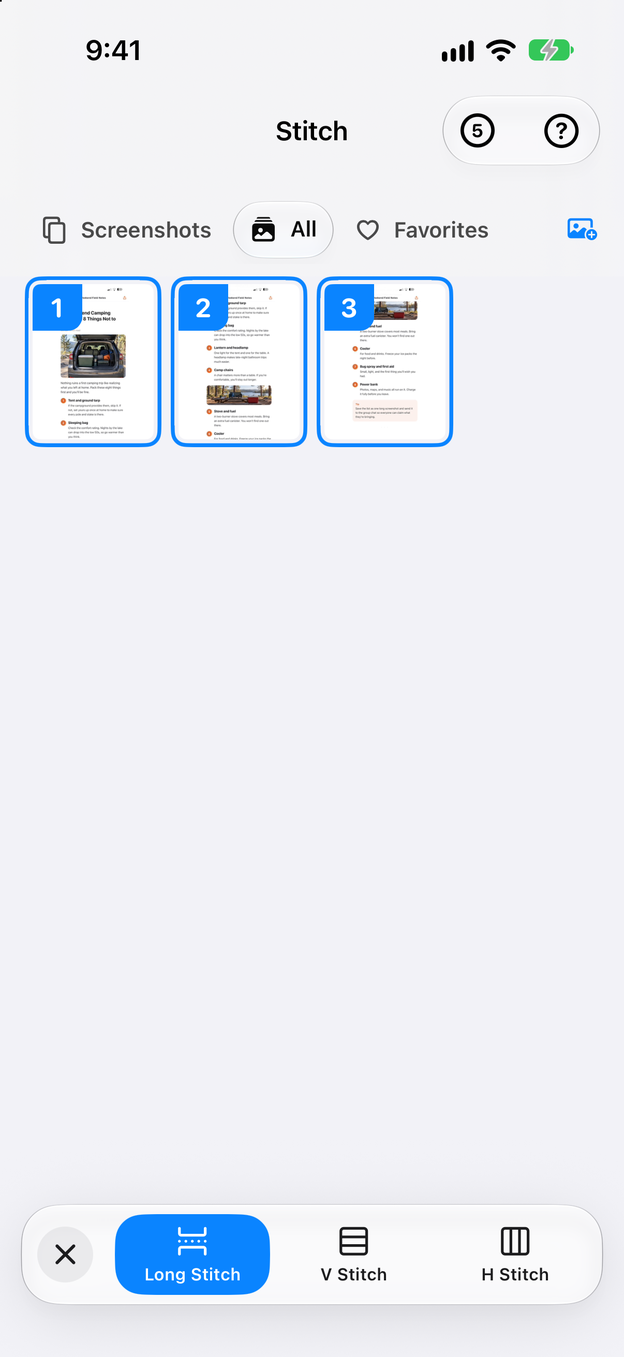
1Step 1:Stitch your screenshots or recording
Select your screenshots in Zeta and tap Long Stitch, or turn a screen recording into a long screenshot with Scrollshot. Either way, the result opens in the editor.
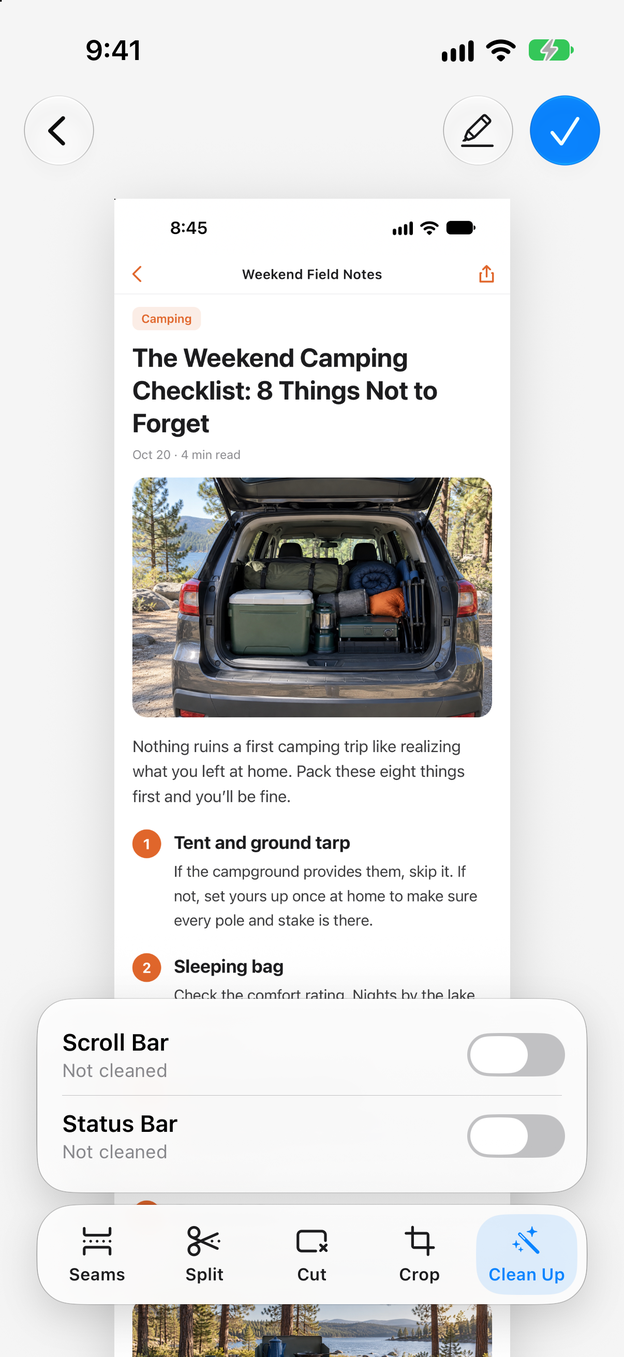
2Step 2:Tap Clean Up and turn on Scroll Bar
Tap Clean Up in the editor’s toolbar and turn on Scroll Bar. Zeta looks for the bar in every screenshot and shows Cleaned when it’s done, or No scroll bar detected if there was none to remove.
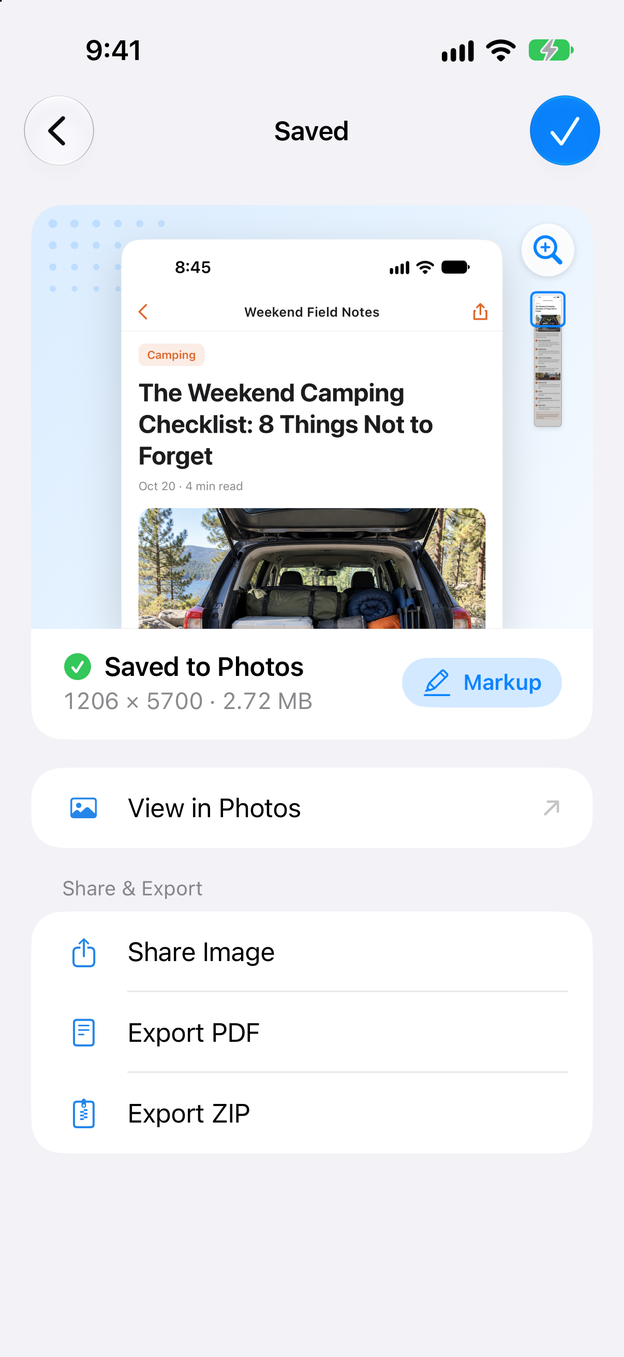
3Step 3:Check the right edge, then save
Zoom in along the right edge to check that the dashes are gone. While you’re in Clean Up, you can tidy the status bar too. Tap the check mark to save the long image to Photos.
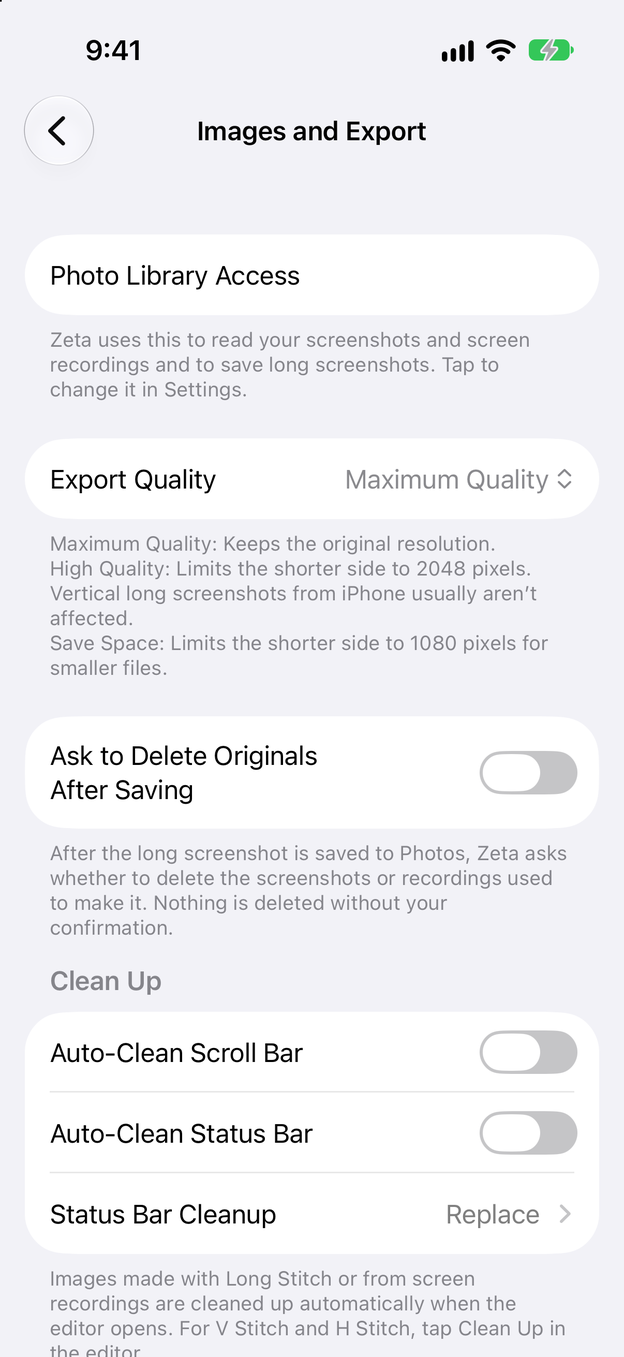
4Step 4:Make it automatic
In Settings > Images and Export, turn on Auto-Clean Scroll Bar. Long screenshots made with Long Stitch or from screen recordings are then cleaned as soon as the editor opens. For V Stitch and H Stitch, tap Clean Up yourself.
How to avoid it next time
- Turn on Auto-Clean Scroll Bar. It’s the simplest way: every long screenshot made with Long Stitch or Scrollshot comes out clean without an extra tap.
- Pause briefly after scrolling. If you take screenshots by hand, waiting until the bar has faded before each one keeps it out of the picture in the first place.
- Clean the status bar at the same time. Auto-Clean Status Bar replaces it with a clean one (full signal and battery, same time), crops it off or erases it, so the top of the image looks as tidy as the edge.
- Check before you delete the originals. Zoom in on the right edge of the result before you let Zeta delete the screenshots it was made from.
For the basics of making a long screenshot, see how to screenshot a whole web page and how to turn a screen recording into a long screenshot.
Questions and answers
Do I need Zeta Pro to remove the scroll bar?
No. Scroll bar removal is free and unlimited, like Seams, Markup and the other editing tools. Only automatic stitching and Scrollshot come with a number of free uses, shown in the App; Zeta Pro, a one-time purchase, makes them unlimited.
Zeta says “No scroll bar detected”, but I can still see a bar.
Zeta looks for the iPhone’s own scroll indicator in the area along the right edge, and only erases what it is sure is that bar. A bar an app or web page draws for itself, or one that was half faded when you took the screenshot, can be left. You can cover it by hand in Markup with Redact and the Background style.
Does it work with screen recordings and on iPad?
Yes. Long screenshots made with Scrollshot are cleaned the same way, and with Auto-Clean Scroll Bar on, automatically. Scroll bar removal also works on iPad. Status bar cleanup isn’t available on iPad or on iPhone models with a Home button.
Are my original screenshots changed?
No. Zeta saves the cleaned long image as a new picture in Photos and leaves your screenshots untouched. Everything happens on your device; nothing is uploaded.