How to Blur Out Names and Numbers in a Screenshot on iPhone
To blur private information in a screenshot on iPhone, open the screenshot or long screenshot in Zeta Stitch, tap the highlighter button to open Markup, and choose Redact. Brush over a name or number, or drag a box around it, and pick a style such as Blur, Mosaic or Black. Tap the check mark to save a copy; your original stays as it was.
Why the iPhone can’t do this on its own
The Markup tools built into iOS let you draw over a screenshot, but they have no blur or mosaic. Covering a phone number with a pen line takes several strokes, and a thin or semi-transparent line can leave the digits readable.
Screenshots often carry more than you meant to share: the other person’s name and photo in a chat, a delivery address in an order, an account number in a bank app, the people tagged in a post. If you share a long screenshot, all of it goes along.
Step by step with Zeta Stitch
1Step 1:Open the image in the editor
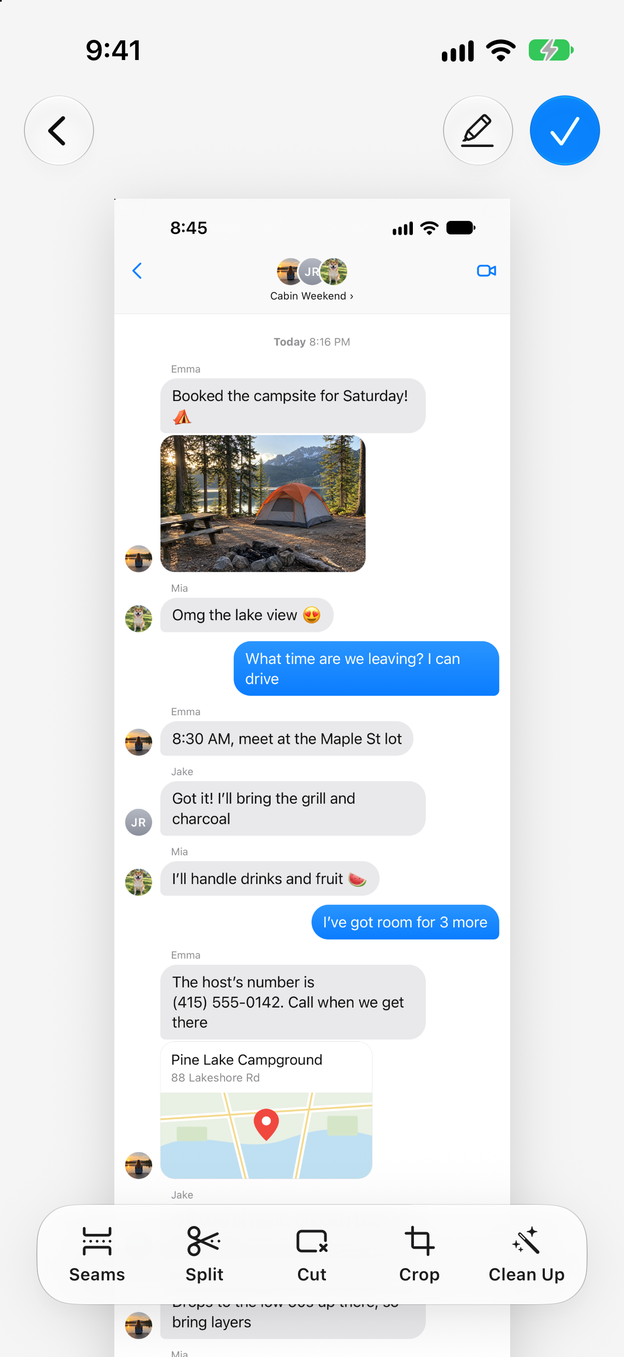
Stitch your screenshots with Long Stitch, or select a single screenshot. In the editor, tap the highlighter button at the top right to open Markup. You can also open it from the Saved screen.
2Step 2:Choose Redact and cover what should stay private
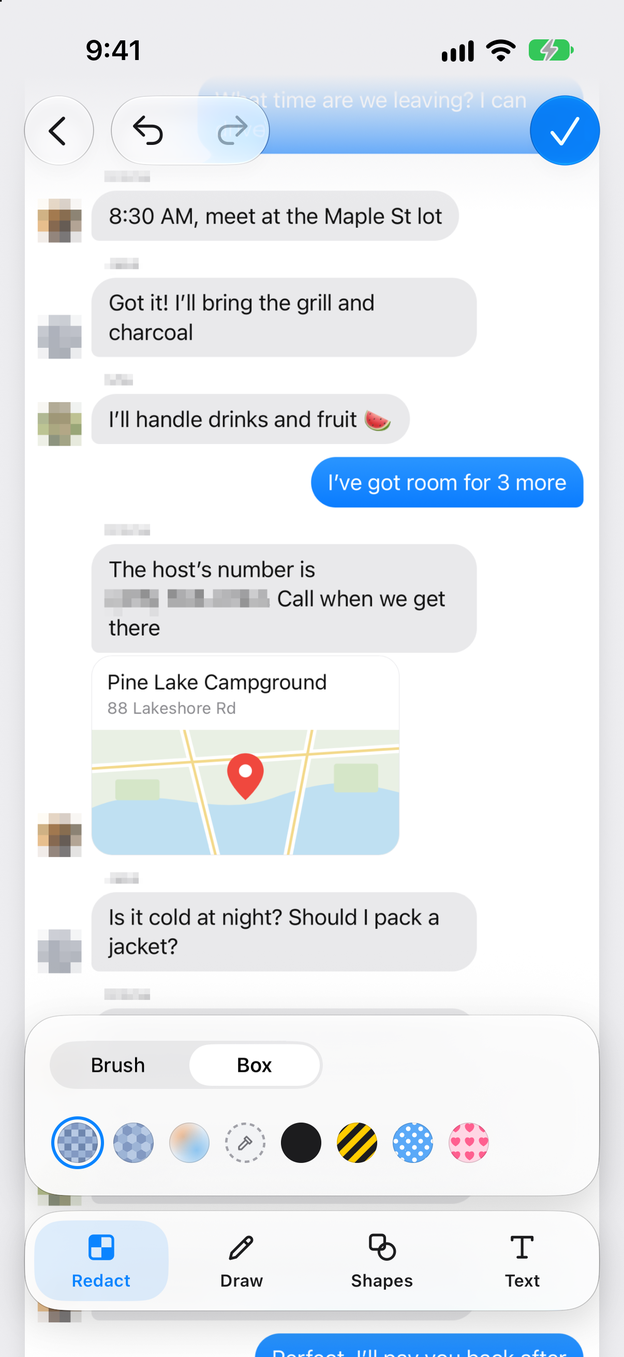
Tap Redact, choose Brush to paint over text or Box to cover a rectangle, and pick a style. Cover names, profile photos, phone numbers, addresses or card digits. Scroll with two fingers to reach other parts of a long image.
3Step 3:Add arrows or notes if you like
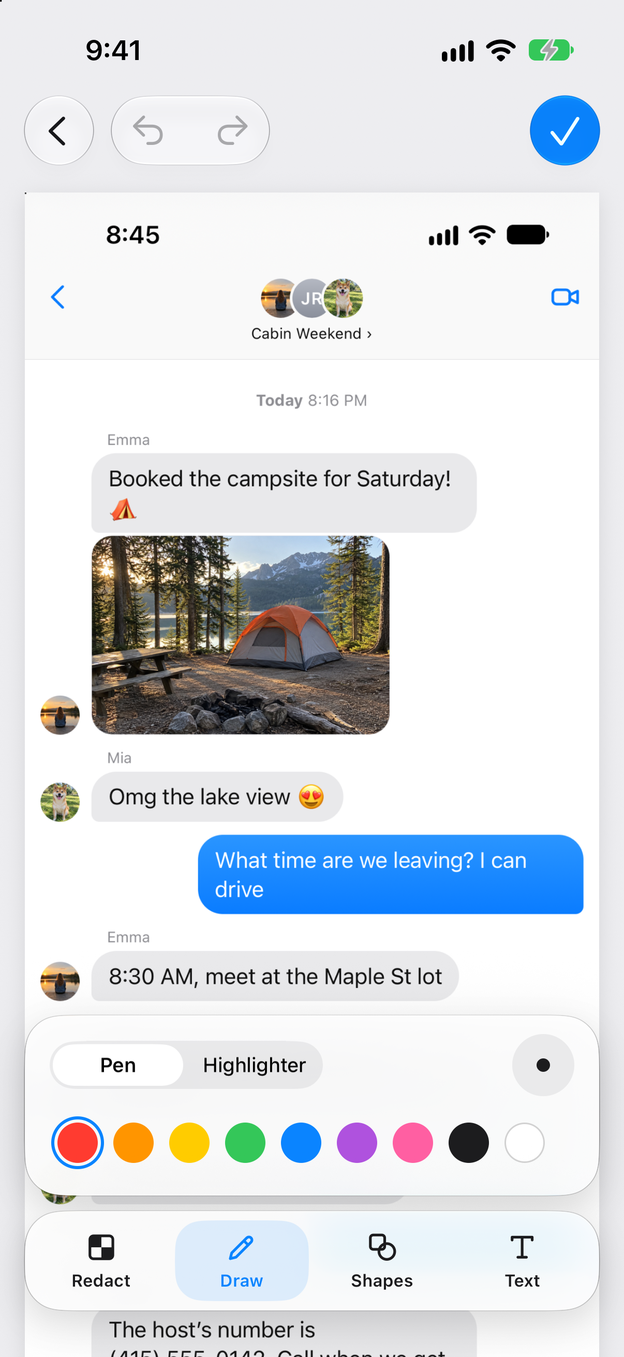
Draw has a pen and a highlighter, Shapes has arrows, ovals and rectangles, and Text adds a label. Undo and redo are at the top.
4Step 4:Save as a copy
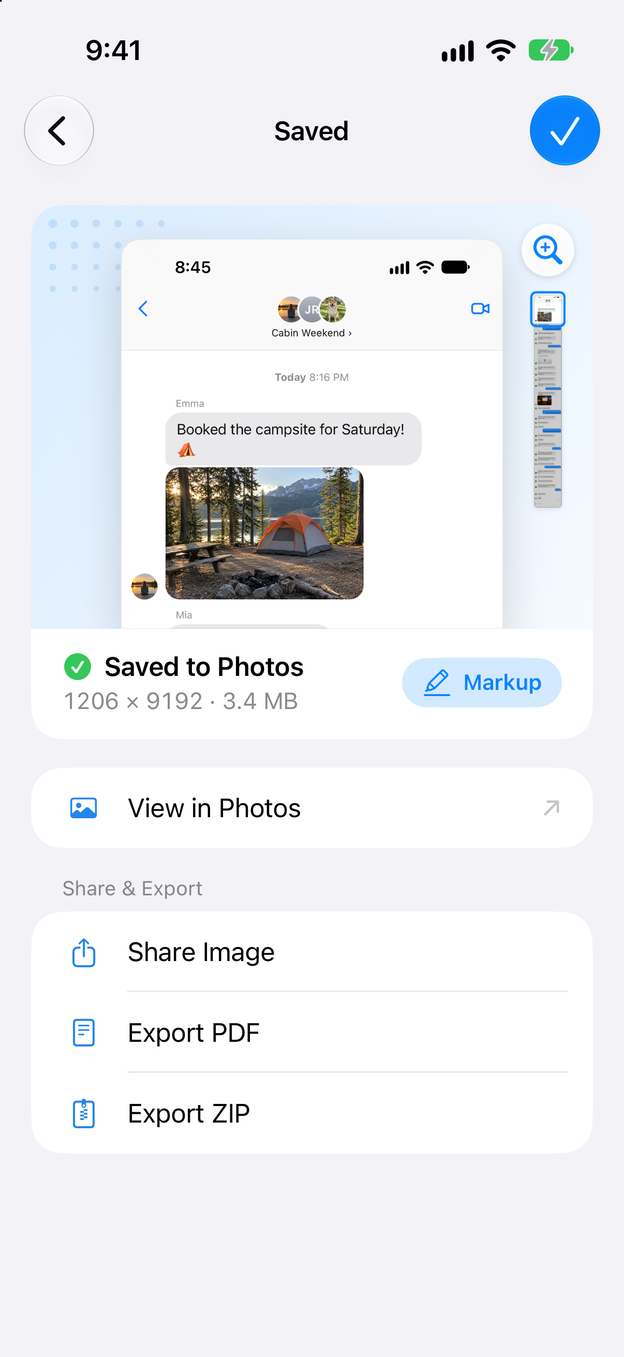
Tap the check mark. The marked-up image is saved as a copy and the original stays untouched in Photos, so you can share one and keep the other.
What to hide before you share
- Chats: names, profile photos and phone numbers of everyone except you, and anything others said that they wouldn’t want passed on. See how to screenshot a whole chat.
- Orders and bookings: home address, the last digits of a card, booking references that can be used to change a booking. See saving a long receipt.
- Social feeds and comments: usernames and profile pictures of people who aren’t part of the story.
- Settings and account pages: email addresses, account IDs and any QR code.
Tips
- Pick the style by the background. Blur works best on plain backgrounds. On a busy background, Zeta suggests Mosaic instead, which hides details more reliably.
- Cover a little more than the text. Brush slightly beyond the edges of a name or number, so no tops or tails of letters remain.
- Zoom in to check. Pinch to zoom before you save, especially on long images where small text is easy to miss.
Export options
After saving, share the redacted image straight away or export it as a PDF (how to save a long screenshot as a PDF) or a ZIP file. Everything, from the redaction to the export, happens on your iPhone; your screenshots are never uploaded.
Questions and answers
Which redaction styles are there?
Eight. Blur, Mosaic, Black, Background, Dots, Stripes, Honeycomb and Hearts. Black and Background cover text completely; Blur and Mosaic keep the shape of the screenshot recognisable while hiding the details.
Can someone undo the blur on my image?
The redaction is part of the saved image: the pixels underneath are replaced, not hidden in a layer. For text that must never be read, such as a password or a full card number, Black is the safest choice, because it leaves nothing to sharpen.
Does Zeta change my original screenshot?
No. Markup saves a new copy. The screenshots you started from stay in Photos until you delete them.
Can I add arrows or text as well?
Yes. Markup also has a pen, a highlighter, shapes such as arrows, ovals and rectangles, and text in three styles.