How to Save a Long Receipt or Order as One Image on iPhone
To save a long receipt or order as one image on iPhone, take overlapping screenshots from the top of the order to the total, select them in Zeta Stitch and tap Long Stitch. Zeta joins them into one picture. Blur card or address details if you need to, then save it to Photos or export it as a PDF for your records.
Why the iPhone can’t do this on its own
Order confirmations, booking details, bank transfers and utility bills are usually longer than one screen, and many of them only live inside an app. iOS gives you one screenshot at a time, so the total ends up in one picture and the items or the order number in another.
That’s awkward when you need to show the whole thing: for an expense claim, a return, a warranty, or to send a booking to someone travelling with you. One long image keeps everything from the header to the total together, in the right order.
Step by step with Zeta Stitch
1Step 1:Capture the whole order
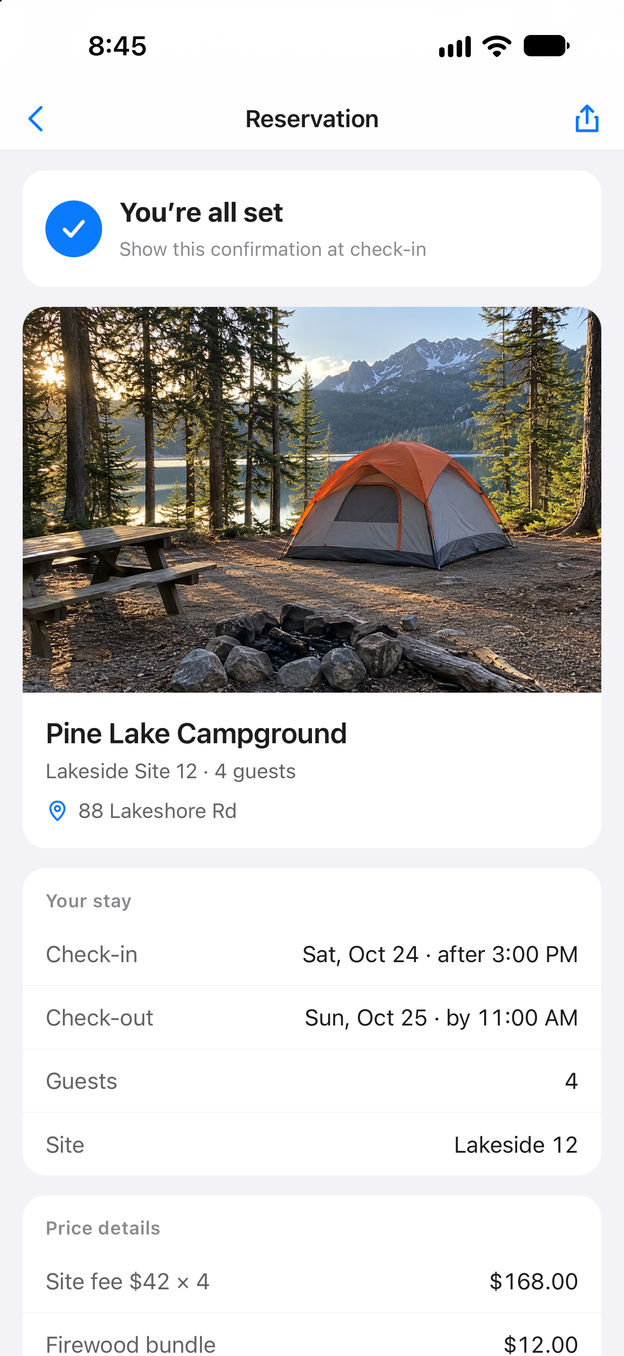
Open the order, booking or bill and take a screenshot. Scroll down a little, keep a few lines of the last screenshot visible, and take the next. Stop when the total and the order number are on screen.
2Step 2:Select the screenshots and tap Long Stitch
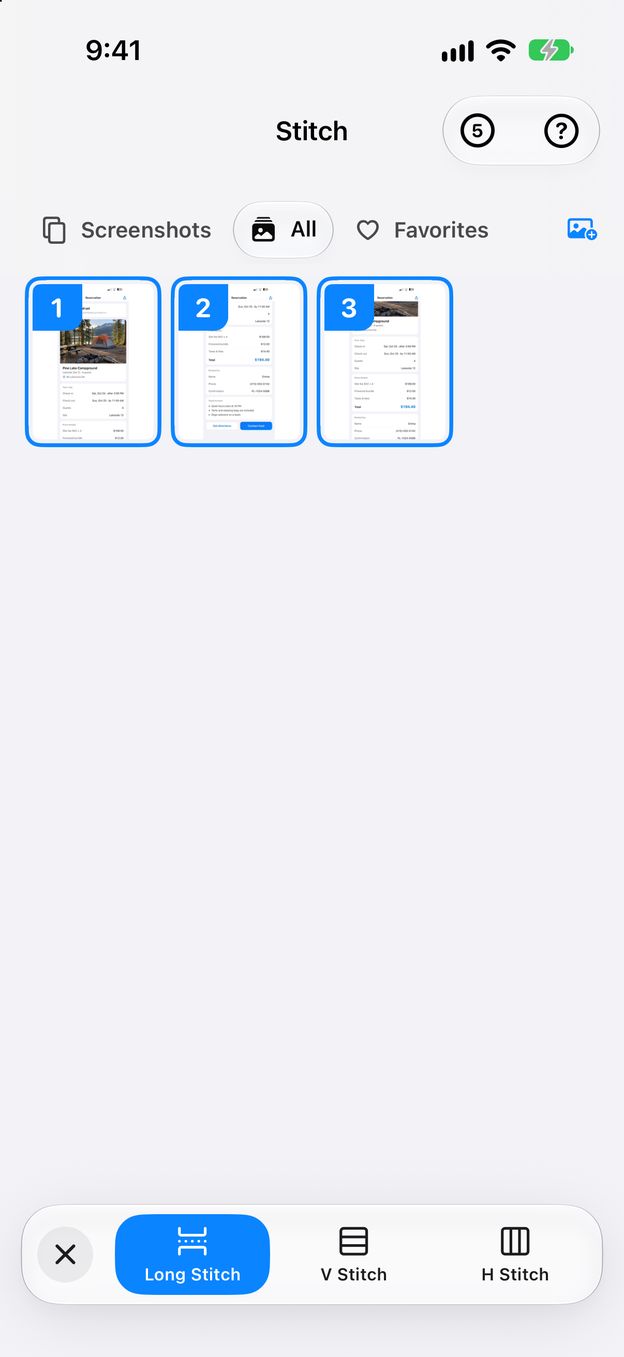
In Zeta Stitch, tap the screenshots from top to bottom and tap Long Stitch. Zeta finds the overlaps and builds one long image of the whole order.
3Step 3:Trim it to what you need
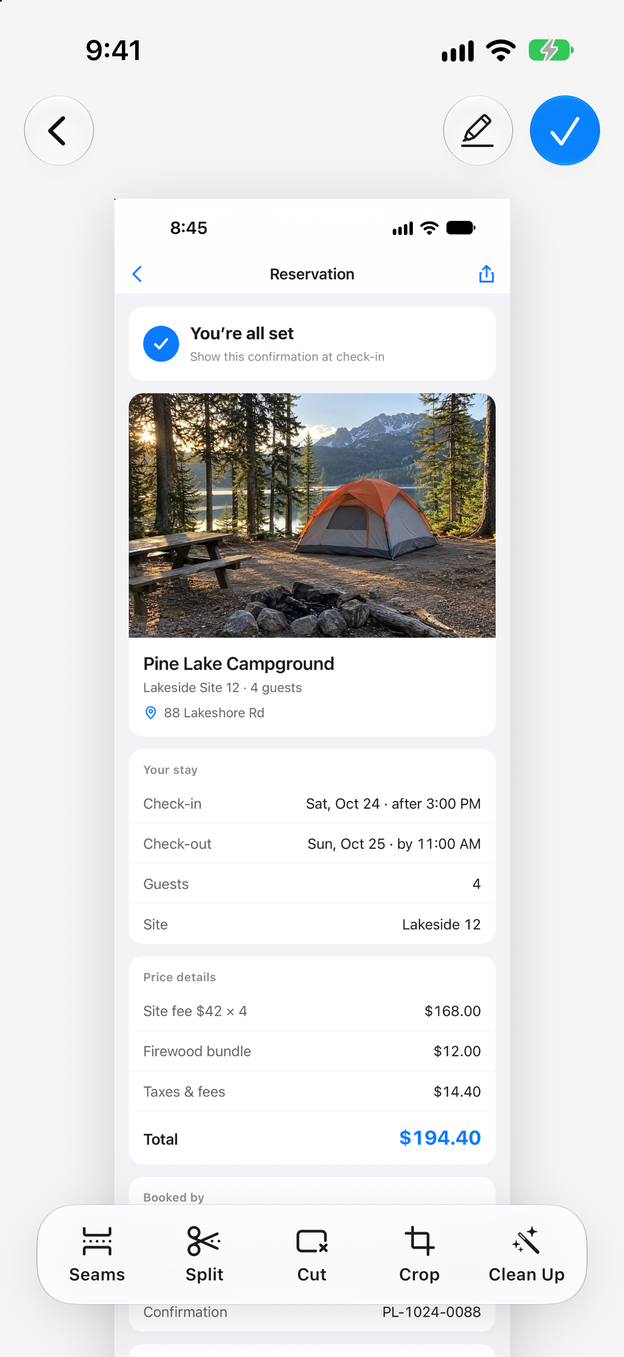
In the editor, use Crop to take off the edges and Cut to delete a section from the middle, such as suggested products under the order.
4Step 4:Save it, and keep a PDF too
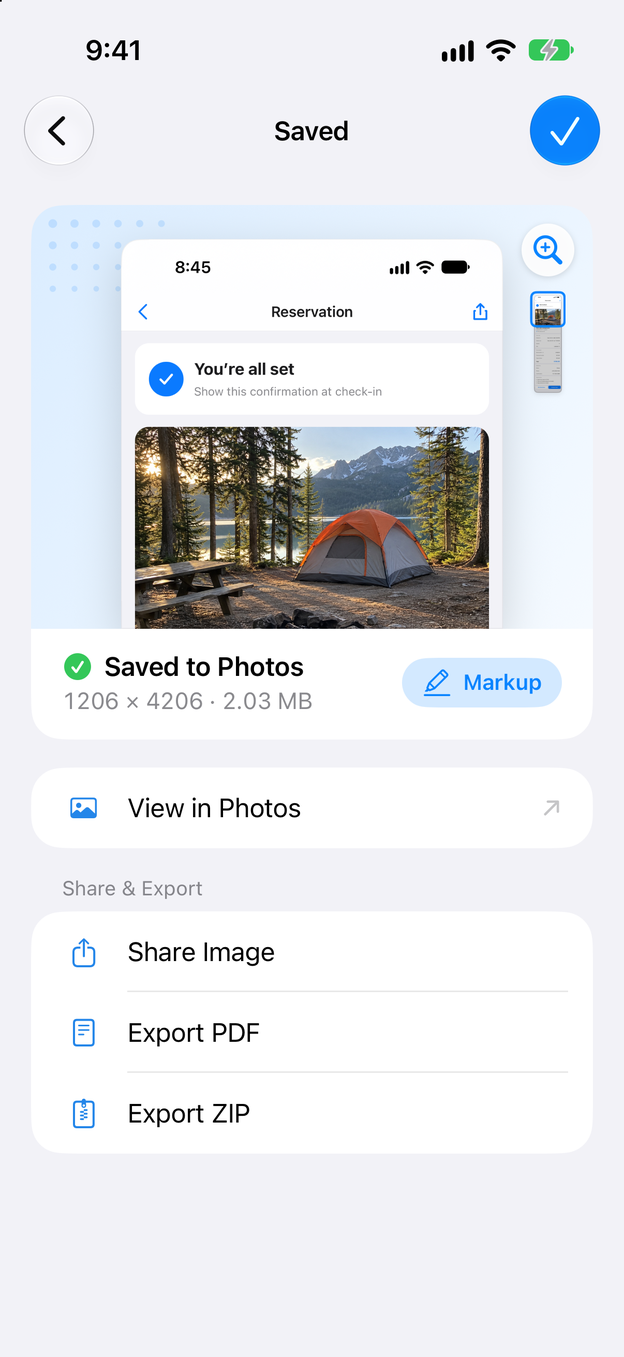
Tap the check mark to save the receipt to Photos. On the Saved screen, tap Export PDF to file it with your other documents. Both are made on your iPhone.
Tips for receipts and records
- Get the important parts in. Make sure the long image includes the shop or company name, the date, the order or booking number, the items and the total.
- Hide what others don’t need. Before sending a receipt, open Markup and cover the last digits of a card, a home address or a phone number with Blur, Mosaic or Black. See how to blur private info in a screenshot.
- Tidy it for printing. Clean Up replaces the status bar with a clean one or crops it off, so a printed receipt doesn’t show your battery level.
- Give it a findable name. When you export a PDF, save it to a folder in Files, such as one per month or per trip, so you can find it at tax time.
- Keep a few lines of overlap. Receipts are full of repeated rows like prices and dashes. More overlap helps Zeta find the right join.
Export options
The long image is in Photos as soon as you tap the check mark. From the Saved screen:
- Export PDF creates a single-page PDF of the whole receipt, which you can save to Files, attach to an email or print. See how to save a long screenshot as a PDF.
- Share Image sends it straight to a messaging app or to email.
- Export ZIP keeps the image as a file, so it isn’t compressed on the way.
After saving, Zeta can delete the original screenshots in one go, with your confirmation, so your photo library doesn’t fill up with pieces of old orders.
Questions and answers
Can I put several receipts into one image?
Yes. Select them and tap V Stitch instead of Long Stitch. V Stitch places the images one under the other in the order you selected, without looking for an overlap. H Stitch puts them side by side.
Is my order information uploaded?
No. Zeta processes your screenshots on your device and never uploads them. It has no account, no analytics and no ads.
Will the text be sharp enough to read later?
Zeta keeps the resolution of your screenshots. In Settings > Images and Export, choose Maximum Quality to save at the original resolution, and zoom in to check the small print before you delete the originals.